# Grapho User Guide

User guide for the Grapho data science + storytelling toolkit
# Introduction
Welcome to the user guide for [Grapho](https://grapho.app) - a toolkit
for data science + storytelling.
- standard interaction mechanics across different data sets and
applications
- easy-to-use desktop, mobile and XR features
- convenient hosting options
- developer-friendly integrations with Neo4j, python and Unreal Engine
Data science comes of age with the explosion in generative AI fuelled by
deep learning techniques and vast data collections. But the reality is
that for all the technical advances, it comes back to humans. How are we
collecting data? Why are we collecting it? What are our motivations for
using it? How do we communicate? Getting to grips with modern data still
requires that ancient skillset we’ve evolved - storytelling - and how we
tell stories is changing.
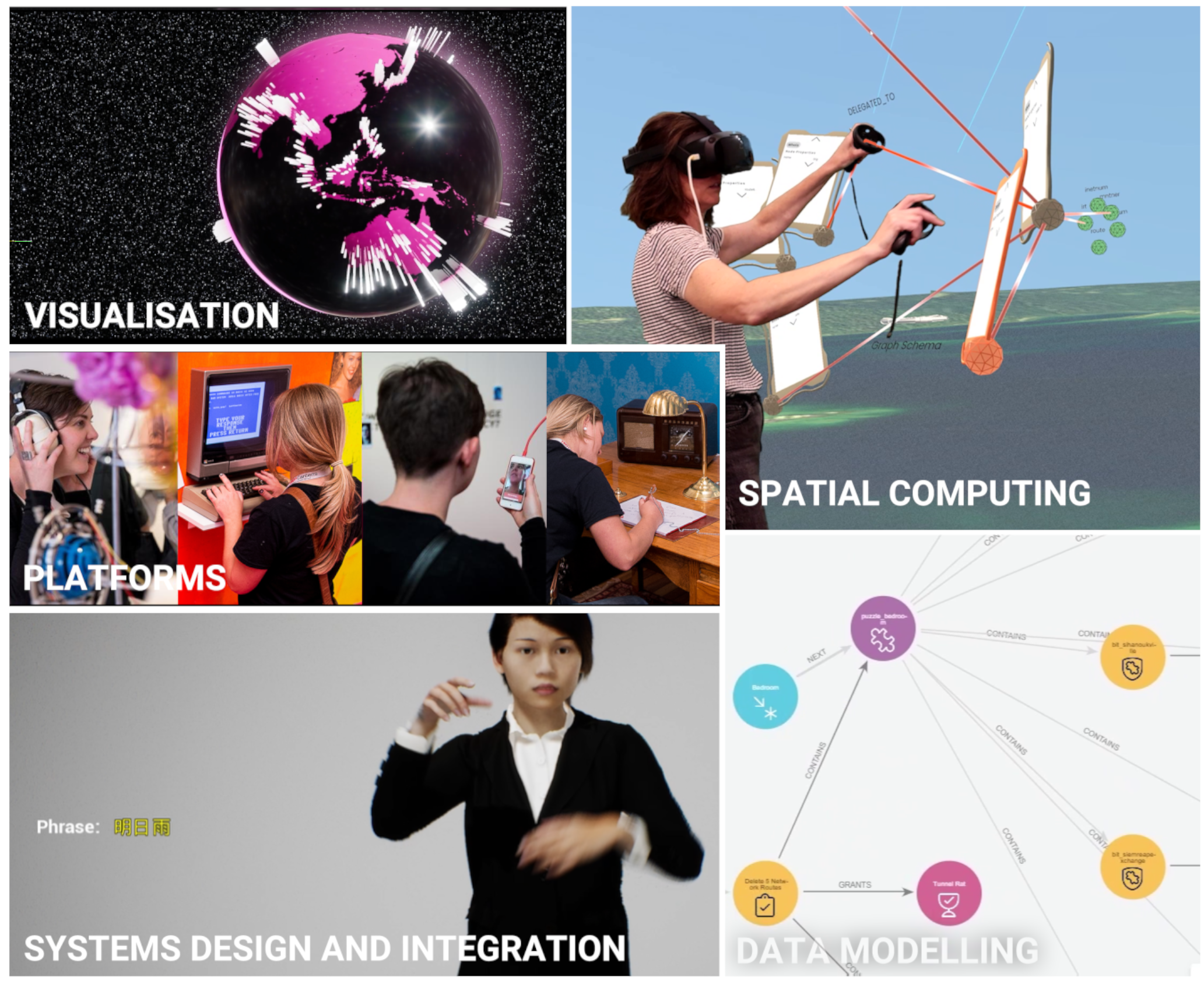
This toolkit is for anyone anyone working with graph data. It empowers
users to create data stories on any platform including spatial
computing. It lets you draw connections in real-time within immersive
virtual worlds. Explore and query graphs using parameters relevant to
you. Grapho productivity tools make taking a deep dive into complex data
sets more accessible and engaging. It brings connections to life.
[Contact us](https://mod.studio/where/) for more information.
See the [Grapho Developer Guide](DeveloperGuide.html) for more
information on preparing data and systems for Grapho.
## Benefits
- Harness public and private domain knowledge
- Fine tune your data for AI and ML training
- Improve evaluation of complex systems and processes
- Improve explanability of your insights
## Why “data science + storytelling”?
Data is about people. Your people must understand the story your data is
telling. As data scientists lean further into the astonishing power of
Machine Learning, a one-size-fits-all automated approach is inadequate.
In the age of AI, coherant storytelling is more valuable than ever.
- Data management (leadership)
- Data architecture (documentation and mapping)
- Data design (analysis and visualisation)
- Data engineering (building)
- Data operations (maintaining)
- Data science (research and development)
## History
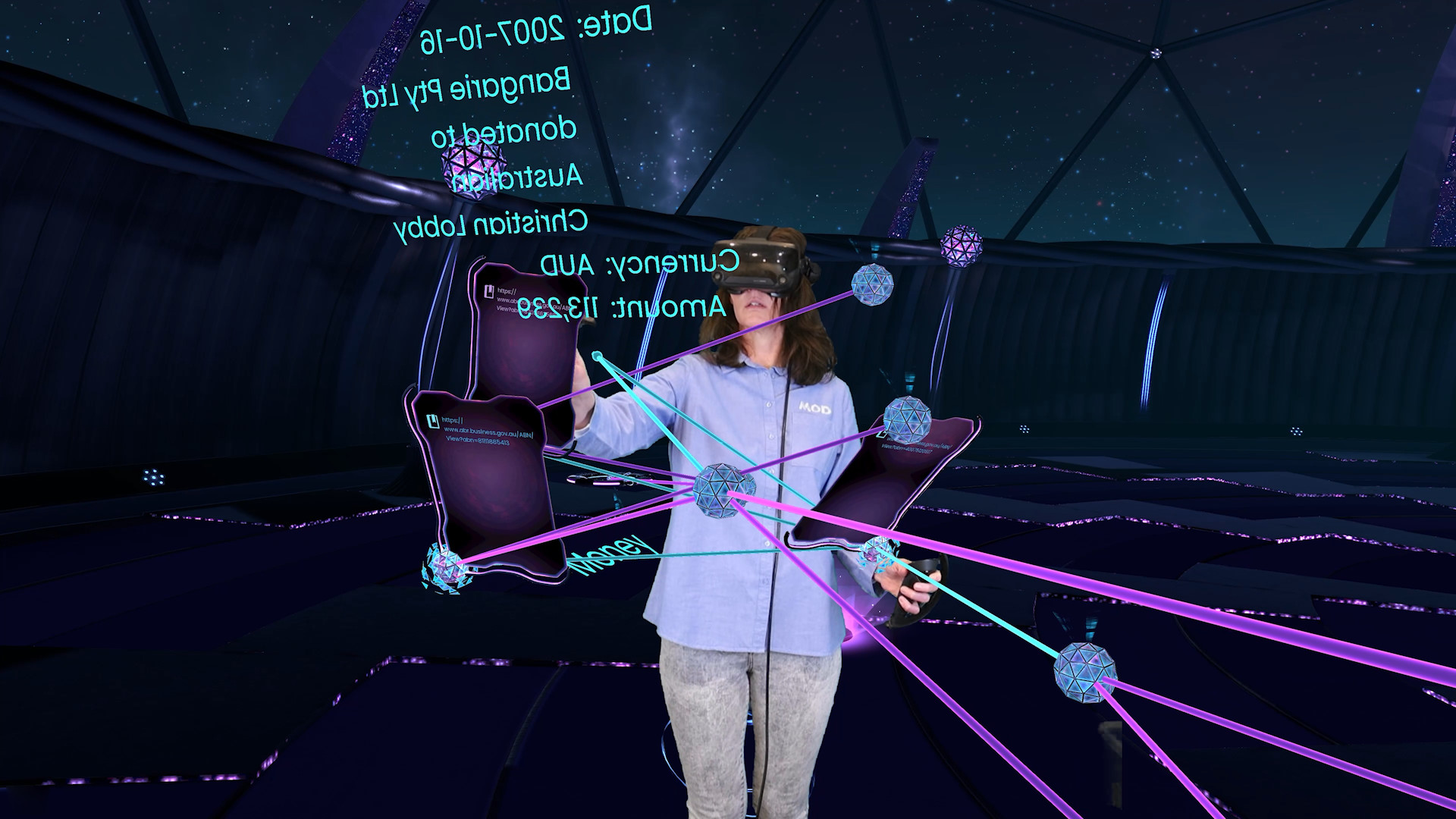
Grapho started life as a spatial knowledge graph interface for a VR
documentary [A Clever Label](https://acleverlabel.com) released on Steam
in 2021 using a Neo4j backend. This was then spun out as a white label
tool [Grapho XR](#Grapho-XR) in 2022 for knowledge graphs. Our first
customer was [APNIC](https://www.apnic.net/).
In 2024 [ISO 76120 - Graph Query Language
(GQL)](https://www.iso.org/standard/76120.html) was published - the
first database query language standard in 37 years since SQL. This
provides a future-proof way of defining data structures and basic
operations on property graphs. GQL is largely based on Neo4j’s
[CYPHER](https://neo4j.com/product/cypher-graph-query-language)
language.
In 2024 the Grapho service offering was expanded to applied data science
including deep learning model creation and training.
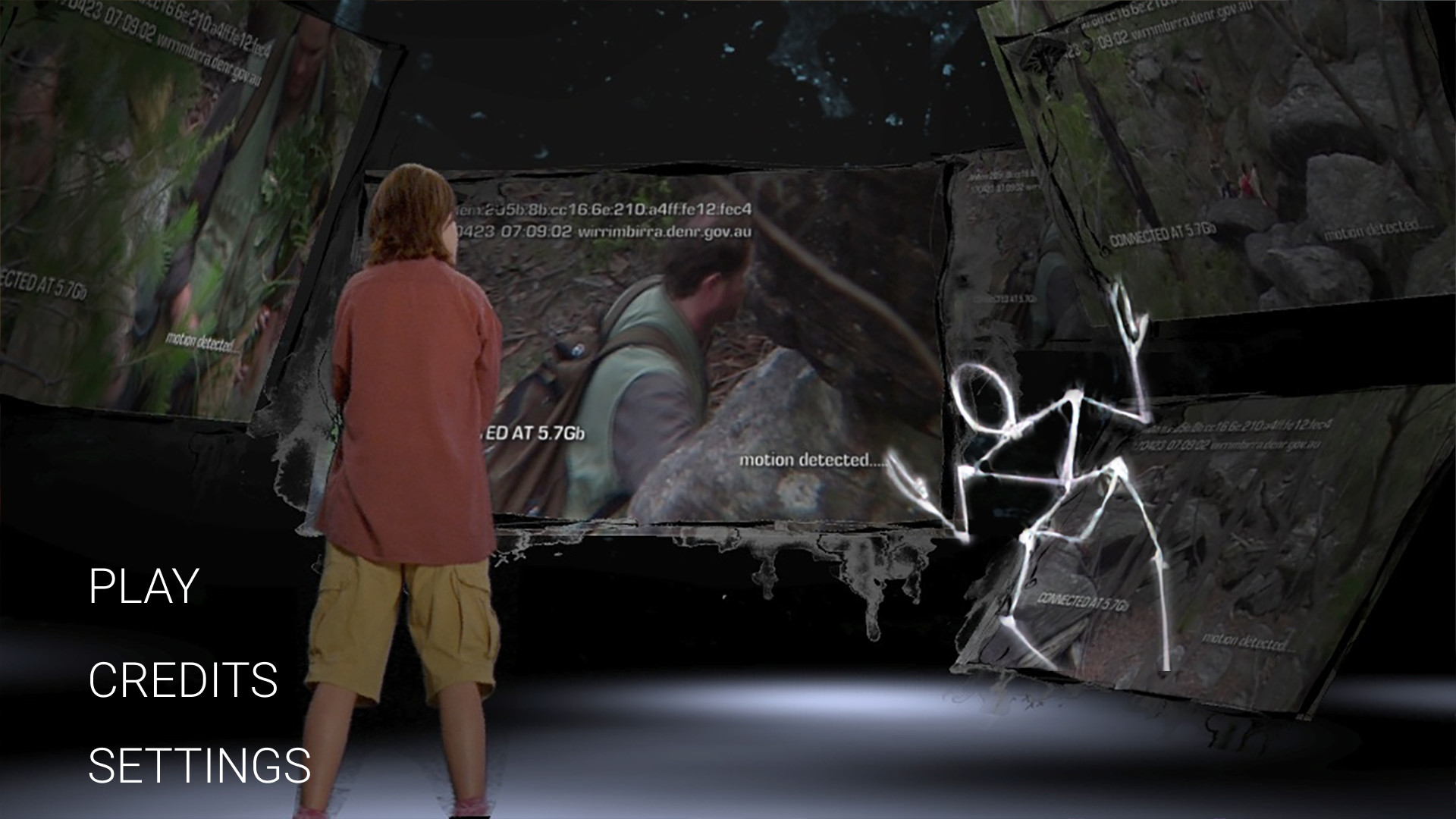
In 2026 the first simulation-based training experience powered by Grapho
shipped - [Northern Biosecurity
Training](https://mod.studio/services/production/indigenous-rangers-vr/) -
for Australia’s Indigenous Rangers programme.
# Roadmap
Grapho is a tool in ongoing development at Mod by Michela Ledwidge and
her team. [Contact us](https://mod.studio) for licensing opportunities.
[Grapho XR
Roadmap](https://trello.com/b/aIg9JRxM/grapho-roadmap-graphoapp)
# Grapho XR
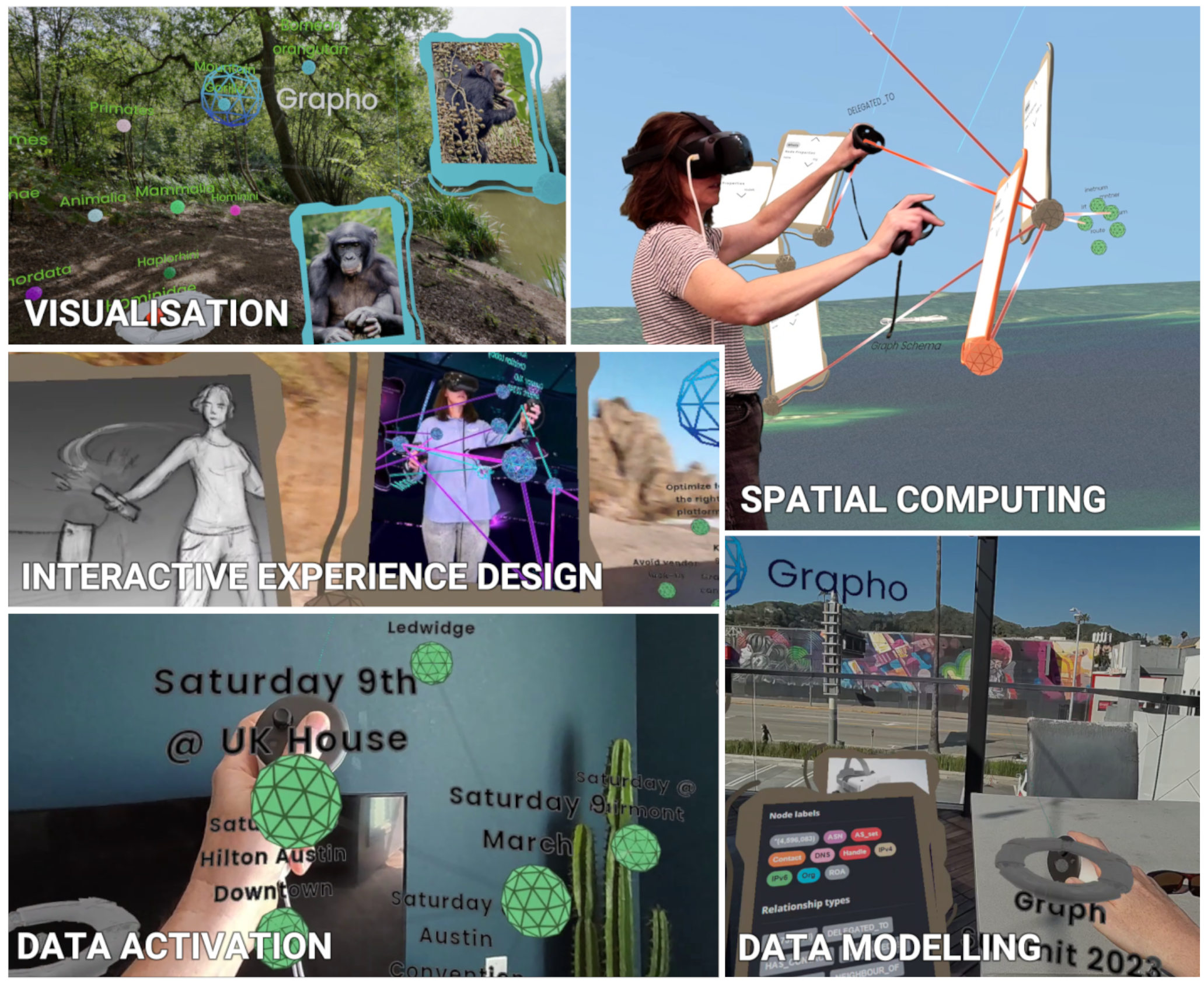
Grapho XR is a spatial graph visualisation tool and a new way to manage
and present graph data.
one-pager-grapho-xr-tiles
Grapho is designed for spatial storytelling. We provide the mechanics,
you provide the data. The demo datasets are just conversation starters
for your own custom experiences.
Grapho is an interactive experience that feels like [Minority
Report](https://en.wikipedia.org/wiki/Technologies_in_Minority_Report#Gesture_recognition)
meets [60 Minutes](https://en.wikipedia.org/wiki/60_Minutes). Grapho
provides flexibility to switch between data sets and between visual
themes, ensuring the look is right for your audience. Display and take
control of your data. Share knowledge in a hands-on intuitive way. Use
it on-set as an interactive in-camera VFX solution.
See also
- [“Grapho - graph production technology”](https://vimeo.com/776827140)
explainer video.
- Our SIGGRAPH2022 paper [A Clever Label: Multi-sensory VR data
visualization for art, productivity and
communication](https://dl.acm.org/doi/fullHtml/10.1145/3532834.3536206)
- [Screenshots on
Flickr](https://www.flickr.com/photos/modproductions/albums/72177720306315648)
## Quickstart for Grapho XR
### Installation
#### PCVR
- Run Meta Quest Link for Windows
- Connect your Quest to PC via OculusLink (USB-C cable) or AirLink (Wifi
gen6 only)
- Unzip Grapho build ZIP
- Run Grapho.exe direct or use provided BAT file to specify VR or
Desktop mode
- RunGraphoVR.bat
- `start ./Grapho.exe -vr` (default)
- RunGraphoDesktop.bat
- `start ./Grapho.exe -noxrstereo` (Desktop is for users without VR)
#### Mobile VR
##### Grapho XR Demo
Download the free [Grapho XR Demo for Meta
Quest](https://www.meta.com/en-gb/experiences/grapho-xr-demo/9765613903465624)
from the Meta Store.
For PCVR demos, [contact us](#support).
##### Custom builds
Grapho licensees can sideload their APK onto their XR hardware or build
their own app using our Unreal Engine plugins (5.4 or higher).
To sideload
- Connect your Quest to PC USB-C cable
- [Enable Developer
Mode](https://developer.oculus.com/documentation/native/android/mobile-device-setup/)
- Install [Meta Quest Developer
Hub](https://developers.meta.com/horizon/documentation/unity/ts-odh-getting-started)
OR [SideQuest](https://sidequestvr.com/) (unless you already have
Android Studio or even just adb installed)
- Unzip your provide Grapho XR build ZIP
- Install the provided APK to connected HMD
- via Meta Quest Developer Hub - drag APK onto right side of the UI
- via SideQuest - using “Install APK from file” (right of WIFI icon)
### Induction
Grapho XR is configured by default with a “demo” graph database - a
small set of actors & movies in cross-referenced pop culture
- Enable [PASSTHROUGH](#passthrough) mode with the FACE BUTTON \#2
button
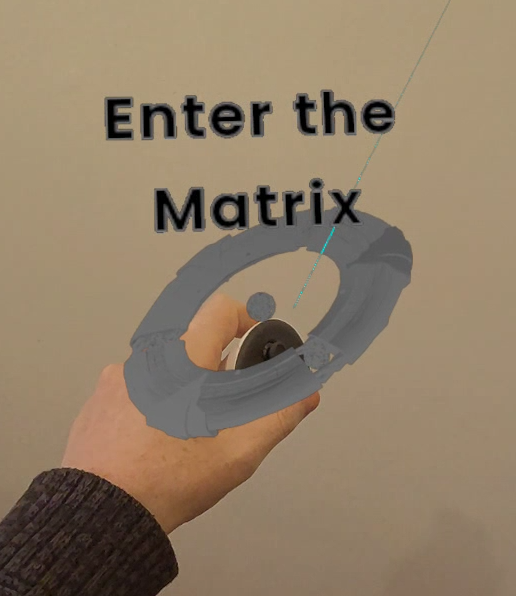
- Reach out and grab the object labelled “Enter The Matrix” with the
[GRAB](#controls) button
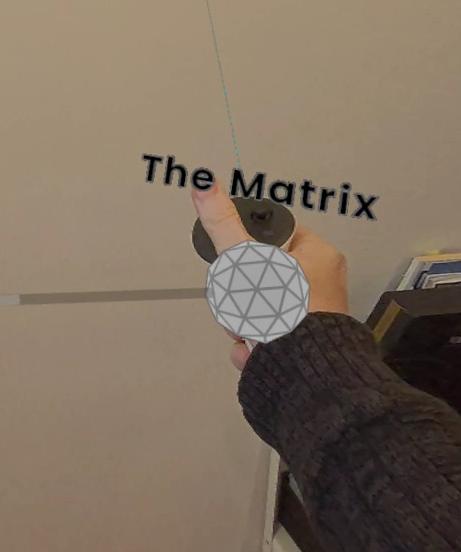
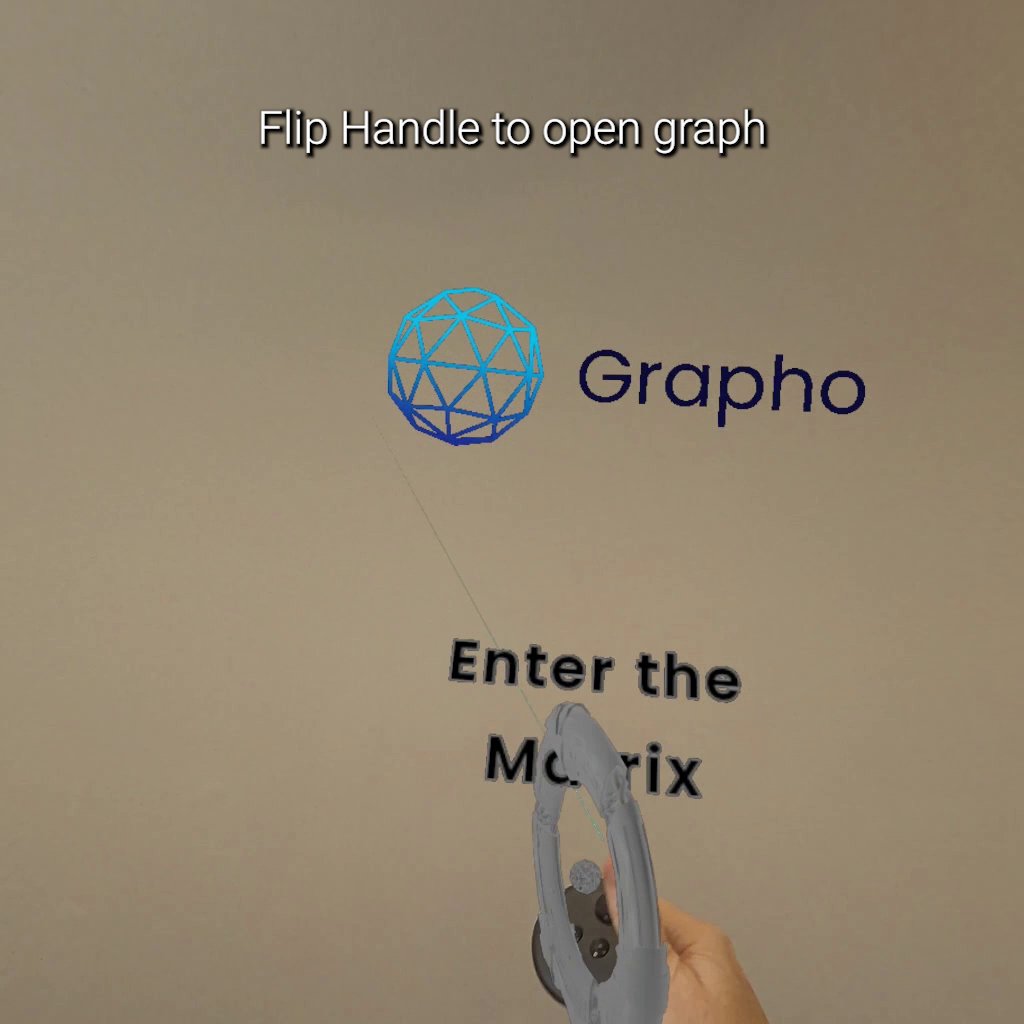
- Flip this “Handle” upside down to [open the graph](#open-graph)
- Grab the spherical nodes (and the relationship lines connecting nodes)
with the GRAB button
- Use the joystick to [TELEPORT](#teleport)
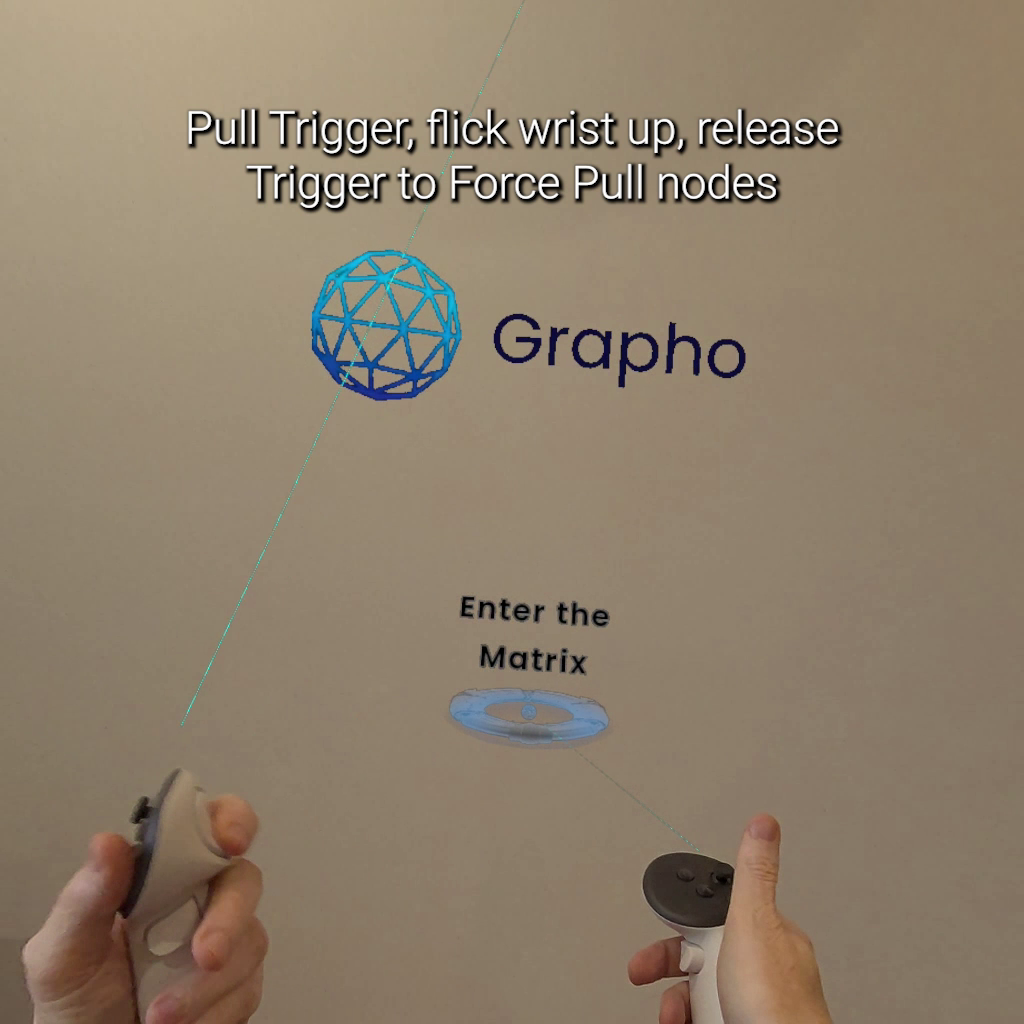
- Use [FORCE PULL](#force-pull) to grab nodes at a distance - point at
node, press TRIGGER button, flick wrist upwards, release TRIGGER
- Alternatively, select a node and simply hold down TRIGGER or GRAB to
automatically force pull.
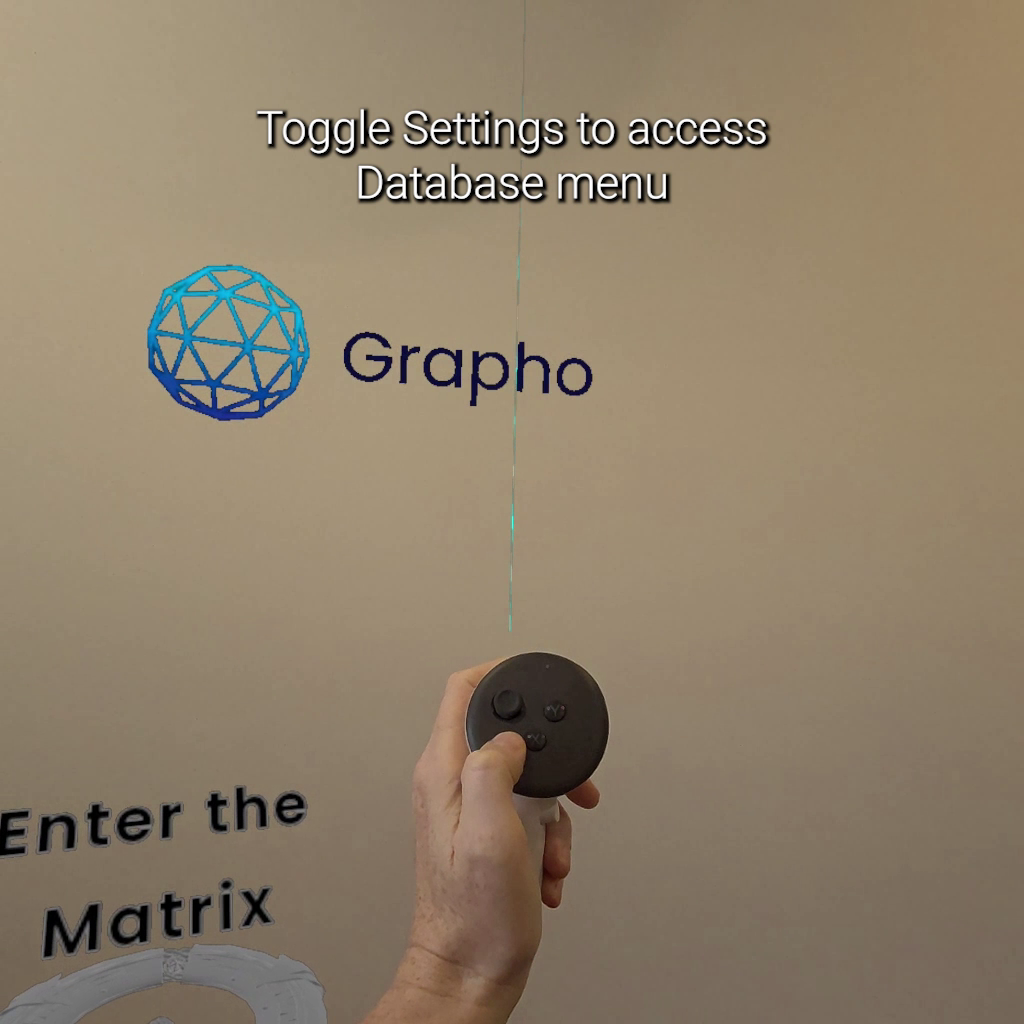
- Switch to another sample database using the [Settings
Menu](#settings-menu)
- Press the SETTINGS button on left controller
- Select a different Database
- Press the SETTINGS button again to return to the level
- See [explainer
video](https://vimeo.com/1025517678/2b7f1b0133?ts=0&share=copy)
showing the Grapho core mechanic on Meta Quest 3 (note - this is a
custom build for a client)
## System Requirements
Grapho XR builds are available for the following platforms.
- PCVR
- Mobile VR
### PCVR
- Windows 10 or 11
- 16 GB RAM or better
- Intel Core i7-3930K/AMD FX 8350 equivalent or better
- NVIDIA GeForce GTX 970, AMD Radeon R9 290 equivalent or better
- 1 GB available space
- Supported
- Quest 2 / Quest Pro / Quest 3 / Quest 3S
- Valve Index
- HTC Vive / Vive Pro / Vive Pro 2 / Vive Focus 3 / Vive Elite XR
NOTE Grapho XR’s “desktop mode” (non-XR) support on Windows is provided
for backwards compatibility, accessibility, and testing. We only
recommend use of 3D visualisation on 3D displays for professional use
given given research findings that 2D visualisation works better on a 2D
displays. See [Dashboard](#dashboard) options for off-the-shelf and
custom options.
### Mac OS
- Coming soon
- Apple Vision Pro
### Mobile VR
- Supported
- Quest 2 / Quest Pro / Quest 3 / Quest 3S
- Vive Focus 3 / Vive Elite XR
- Coming soon
- Apple Vision Pro
Controllers are currently required. Hand tracking support on request.
We don’t currently recommend hand tracking for precise manipulation of
graph data for professional use.
## Development Frameworks
See [Grapho Machine](#grapho-machine) for details on Grapho service
components and development options.
Grapho XR source code is available to licensees for custom development
with the following frameworks
- [Unreal Engine](https://unrealengine.com/)
## User Interface
The Grapho UI has the following key components
### Handle
A Handle is a special type of node that is a convenient handle to a
section of a graph that speeds up navigation and helps manage clutter.
Think of it as a pointer or a bookmark to a particular spot in a the
graph.
handle
### Node
The graph is made up of Nodes
handle
### Relationship
Connections between nodes are relationships (or links)
handle
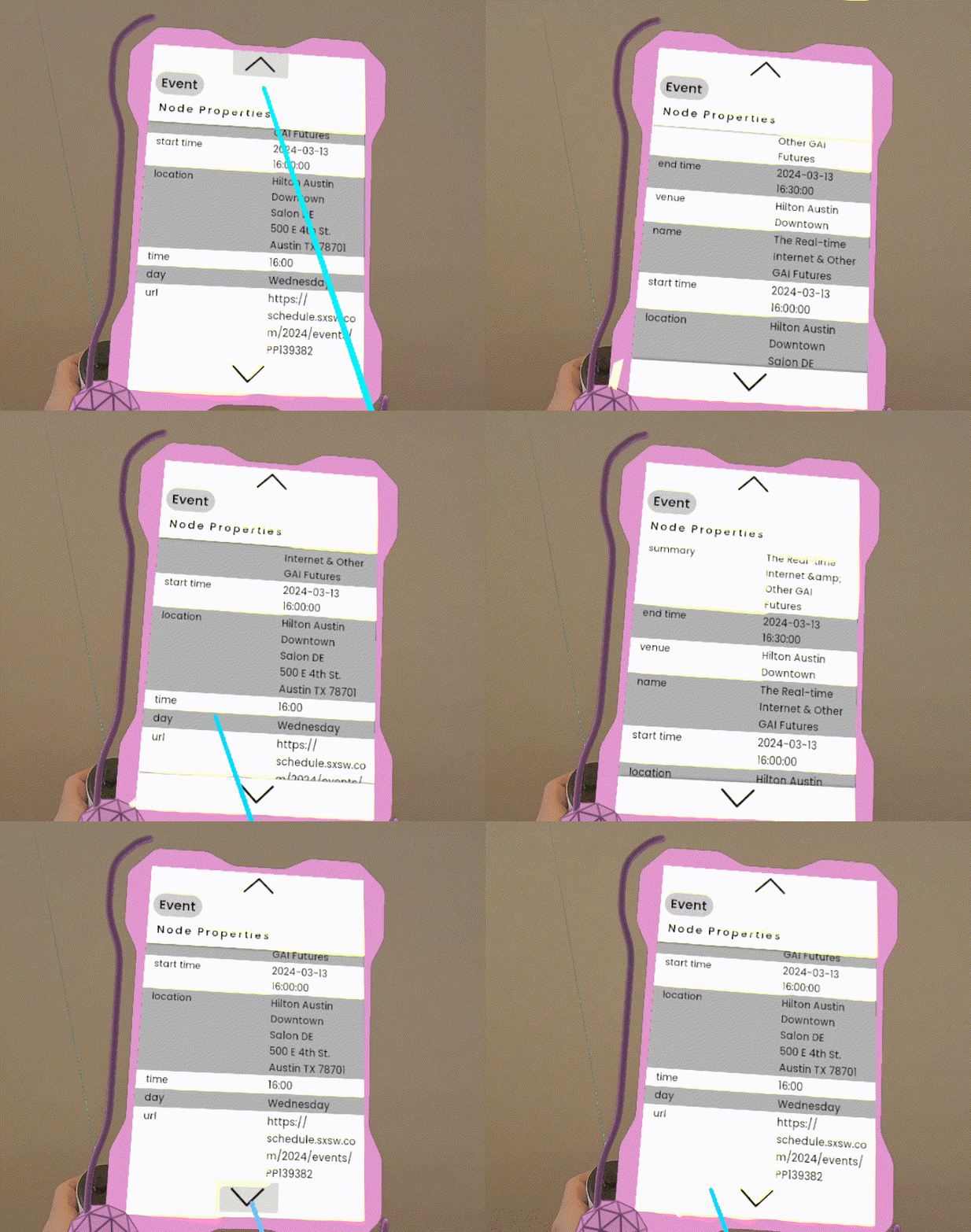
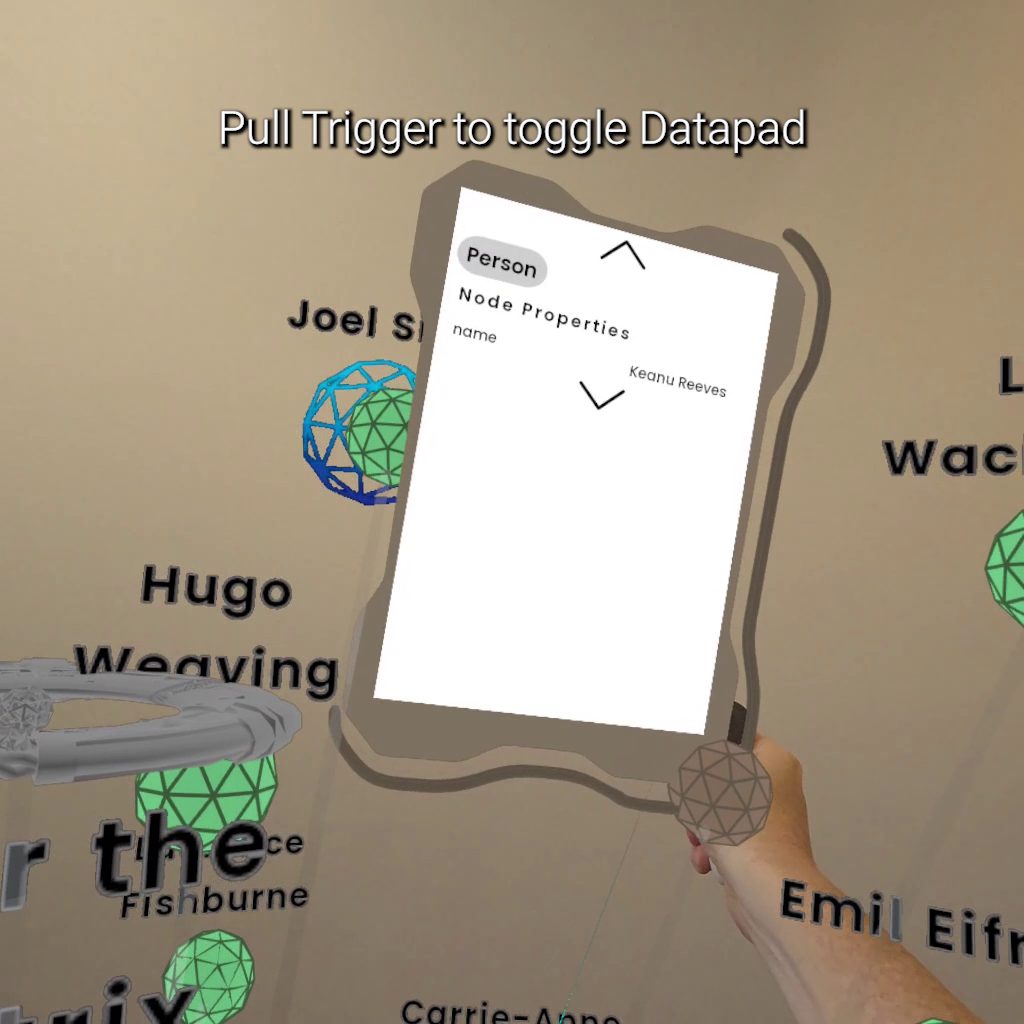
### Datapad
Nodes properties (anything from multimedia to a simple list of text)
appear on an attached surface - the data pad.
datapad-gif
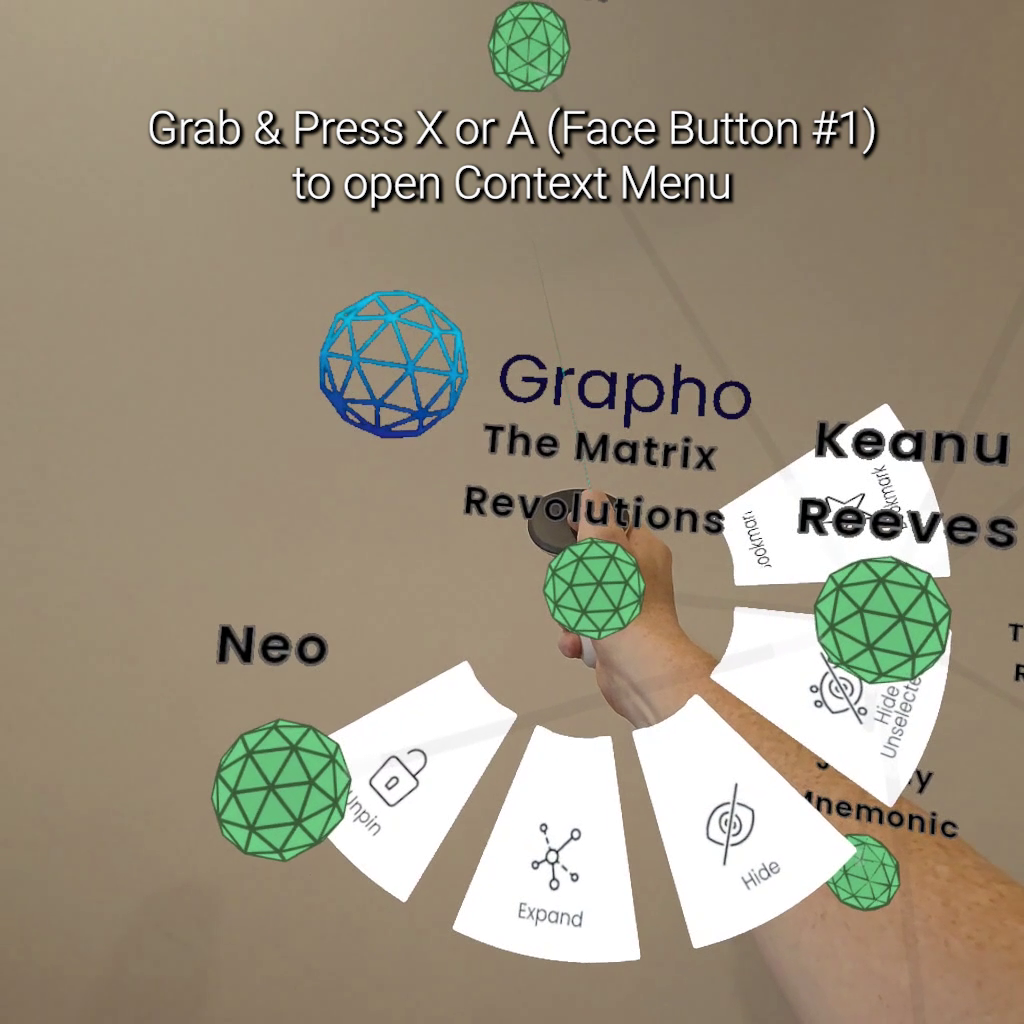
### Context Menu
Context menus allow you to perform actions on a particular node.
handle
## Controls
Meta Quest Touch Controller layout
controls
### Passthrough
Passthrough camera support is available on Quest and Vive mobile
headsets but not on Windows.
See [Mixed Reality](#mixed-reality) for PCVR camera support for
combining greenscreen live action footage and Grapho visualisation.
Toggle FACE BUTTON \#2 button to switch between virtual environment and
passthrough (see the real world through the onboard cameras).
Passthrough (sometimes called Mixed Reality) can be great for new users
unfamiliar with VR.
TIP Use this if real world surroundings make it too hard virtual
objects.
### Teleport
teleport
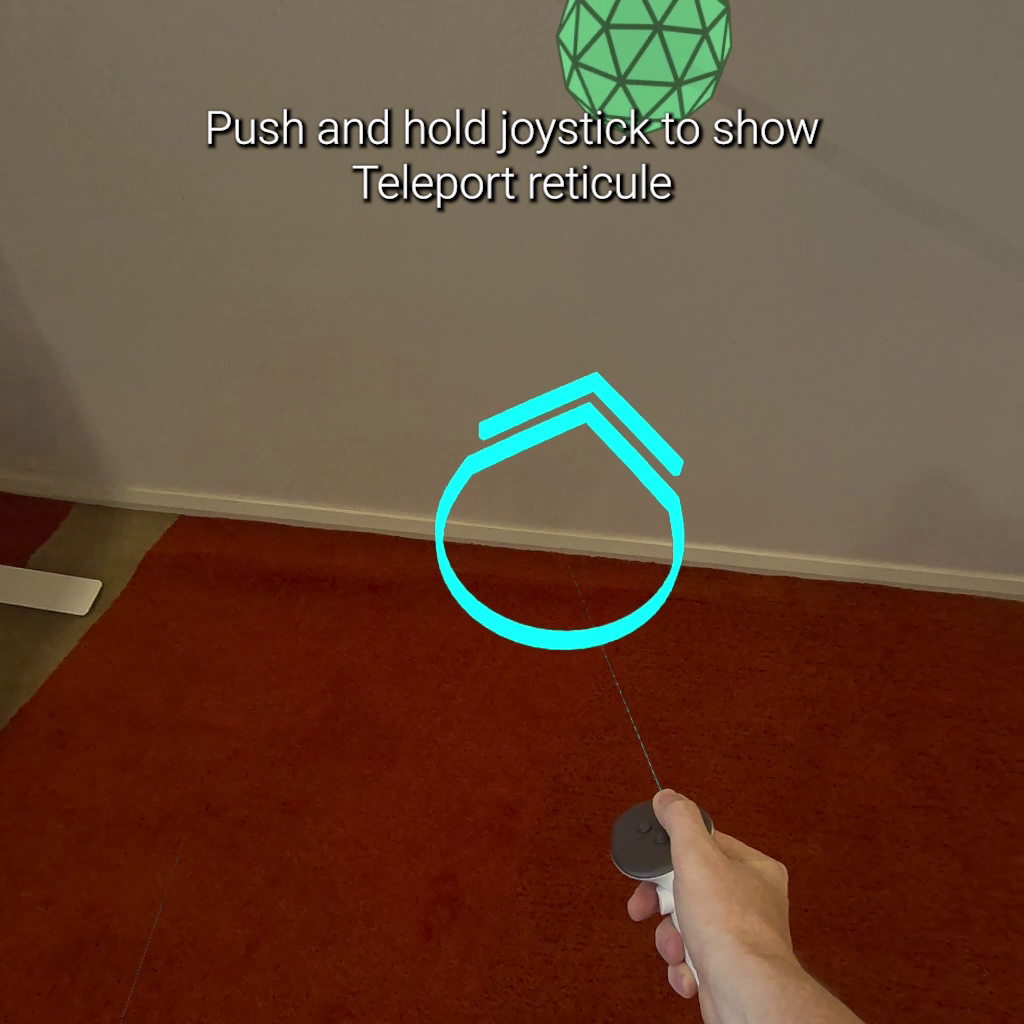
Push LEFT or RIGHT joystick forward to show reticule and direction arrow
on the ground plane. Rotate joystick to change direction of the arrow.
This determines what direction you teleport. Release joystick to
teleport.
NOTE Users new to VR can get confused if they trigger teleport by
mistake. You can change Settings \> Teleport delay to adjust how
responsive the joysticks are if this is a problem.
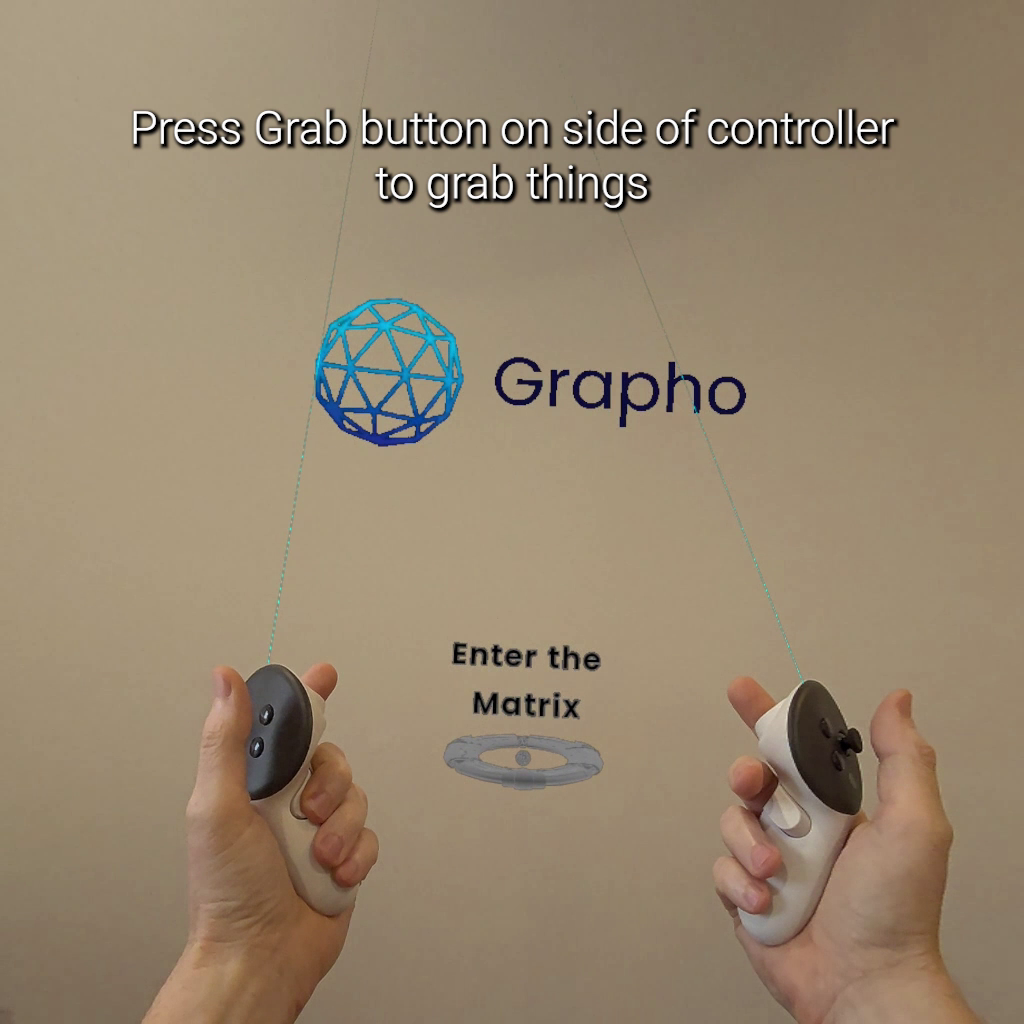
### Grab
grab
Use GRIP button to grab object (handle, node, relationship).
### Force Pull
force-pull-gif
Force pull is a telekinesis-like feature that lets you quickly grab an
object regardless of its distance from you.
force-pull
VR mode:
- Force pull - select object with the laser point extending from your
virtual hand, pull TRIGGER and flick your wrist upward or to the side
(like pulling a line on a fishing rod)
- Settings | Basic | Force Pull Auto Grab ON (default) enables a simpler
mode - simply select object and hold down GRAB or TRIGGER and force
pull will start when line completely changes colour.
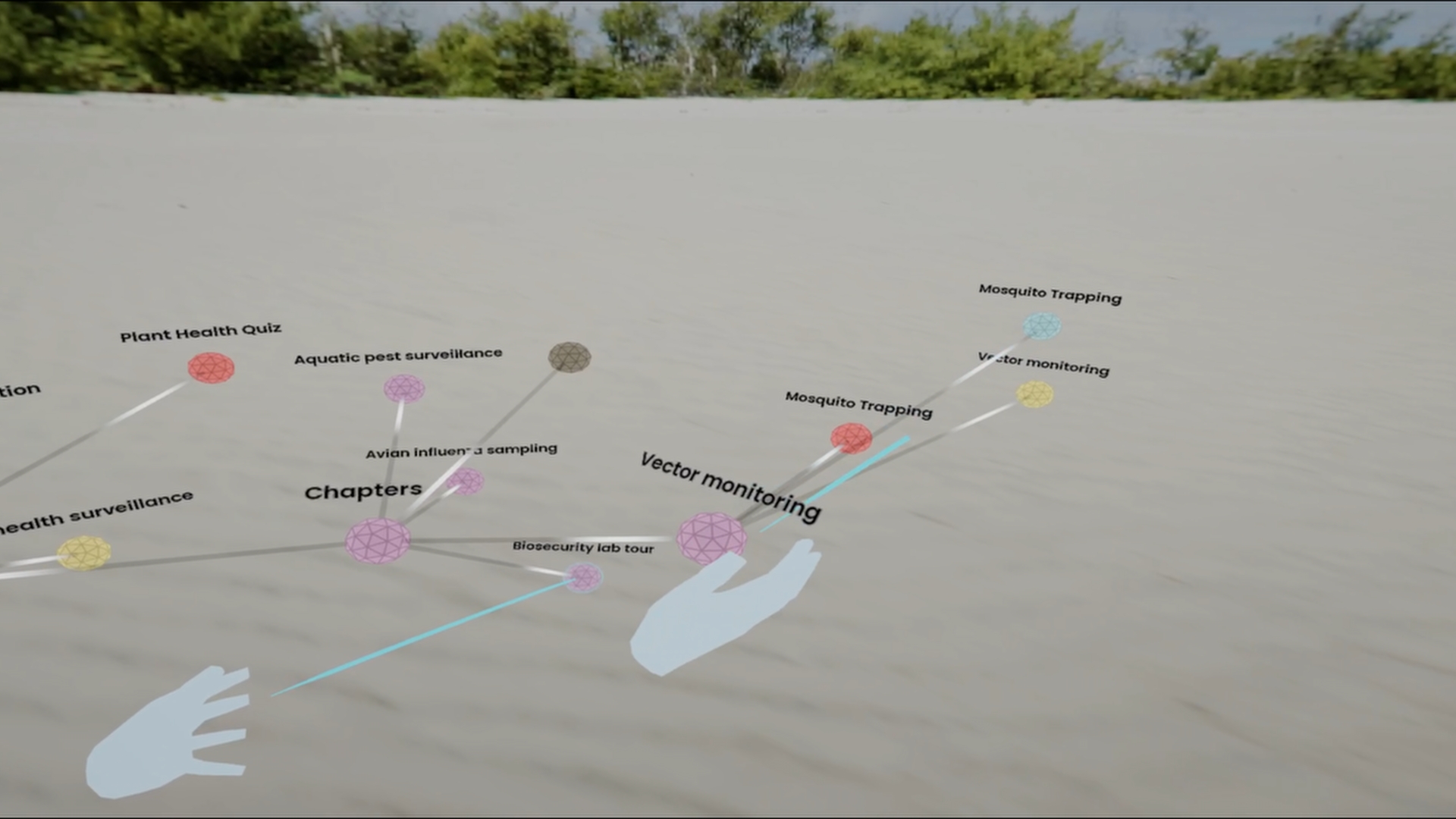
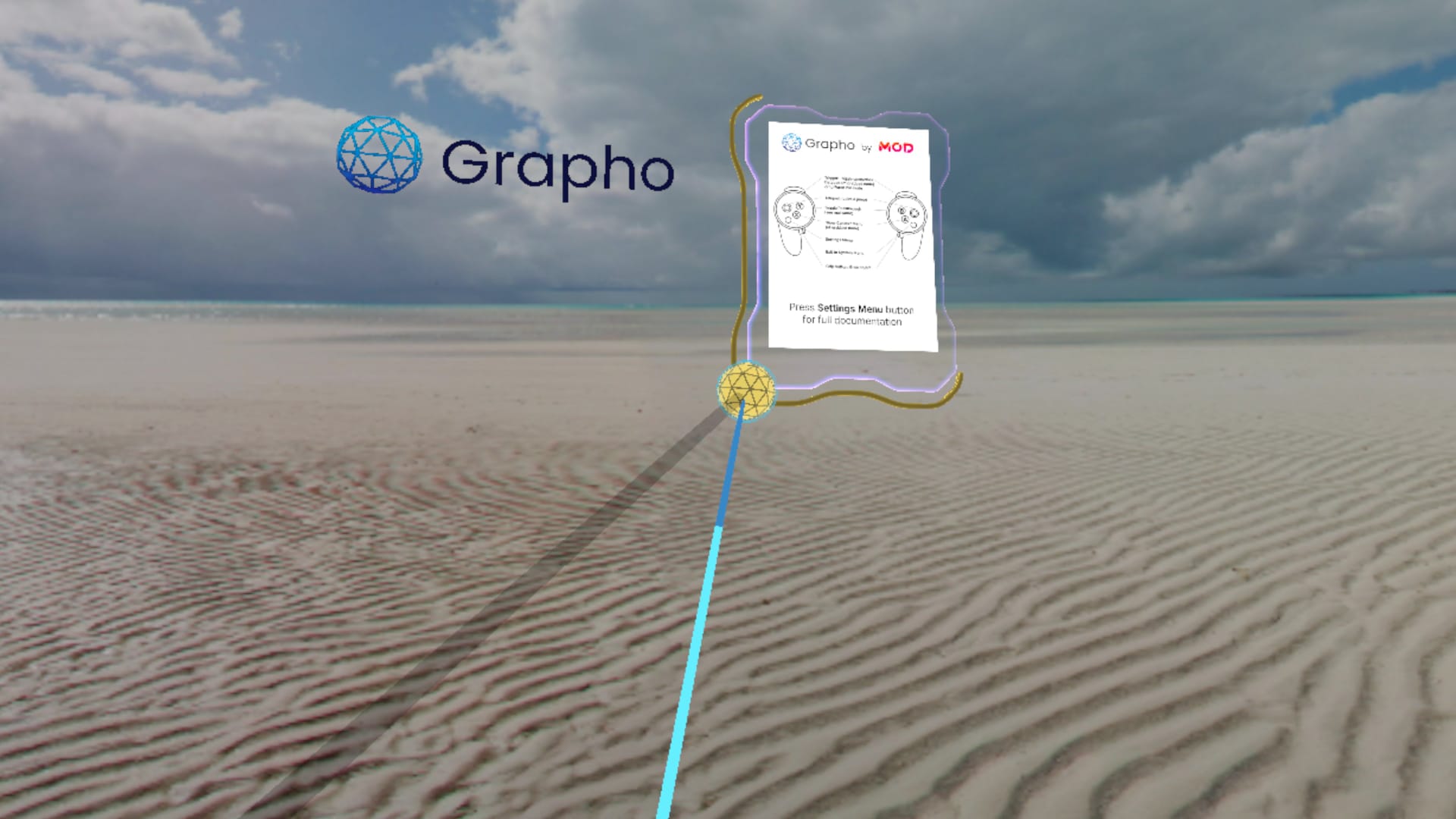 *Screenshot: a growing
dark blue segment of line showing the start of auto grab action*
Desktop mode:
- Grab a node from a distance pressing G key and it will be force pulled
towards the camera automatically
### Bump
Use natural hand movements to move objects out of the way
### Open Graph
handle-open
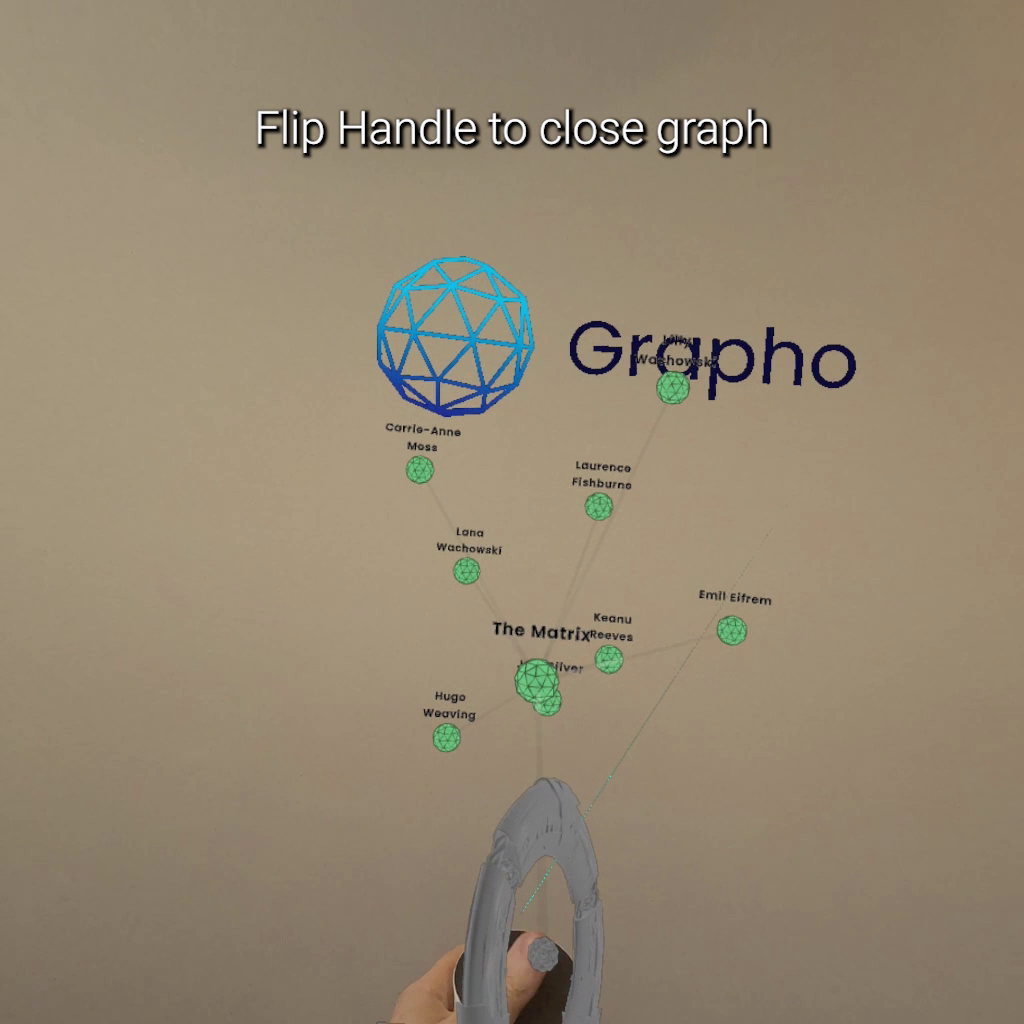
Grab Handle. Flip Handle upside down to open graph nodes (run a query).
Flip again to close graph nodes.
handle-close
### Open Node
node-open
Press TRIGGER button to toggle opening and closing of a node to reveal
its “Datapad” which shows the properties of a node.
Settings \> Open Datapad on Grab checkbox controls whether this happens
automatically on GRAB. It can get annoying sometimes to have this on but
useful as a default for new starters.
## Context Menu
context-menu
Additional functionality is available while holding a node.
GRAB + \ opens a floating menu of buttons
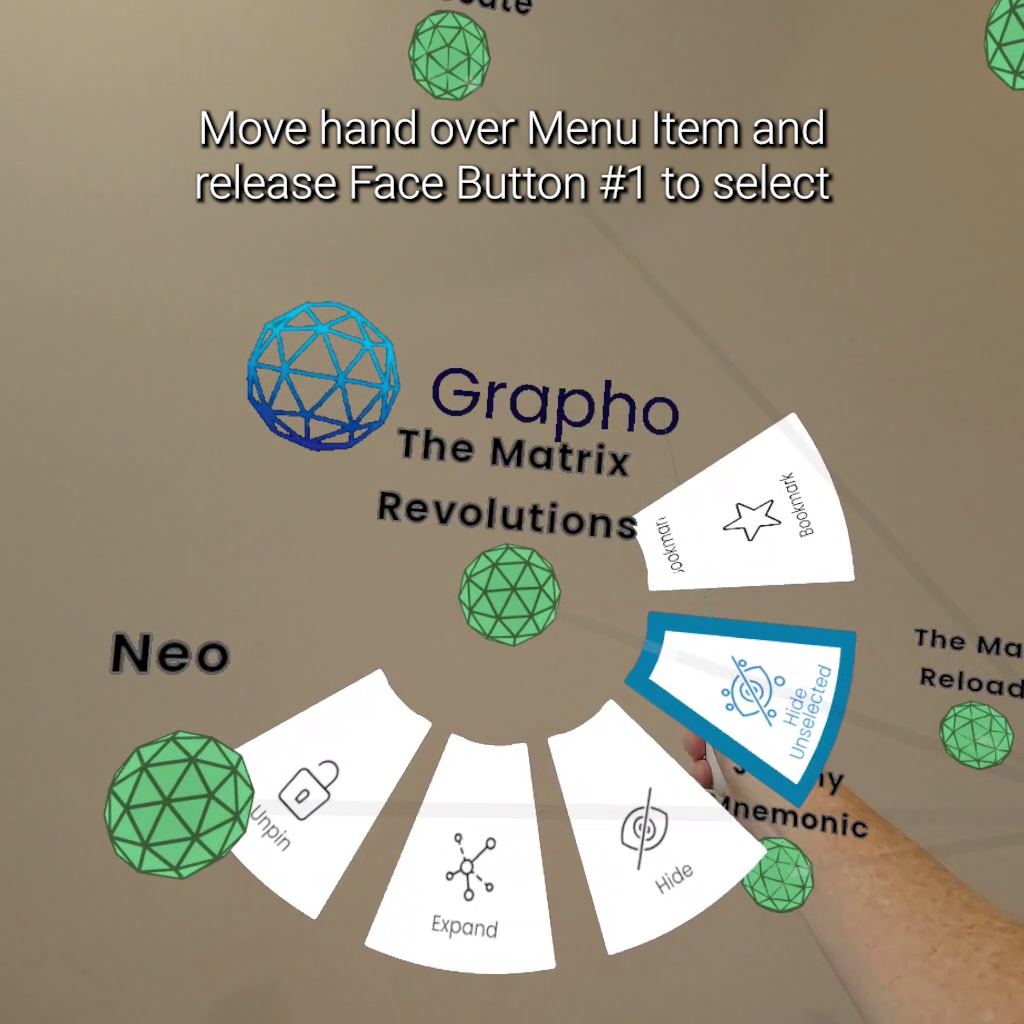
While keeping buttons pressed, move hand over the buttons to highlight
them
Release \ to select highlight action.
Move your hand off the menu and release \ to close
menu without doing an action.
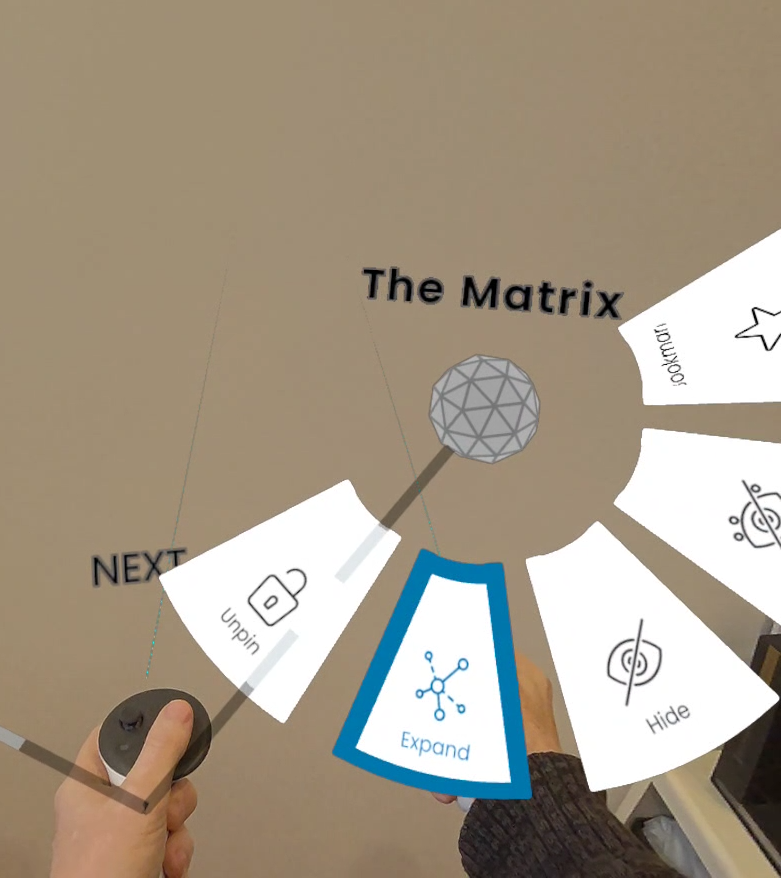
#### Expand
Context Menu \> Expand
Any neighbouring node not already visible are spawned
#### Collapse
Any neighbouring node that was previously expanded (but not part of
original query) is hidden
#### Hide
The node is hidden.
To reveal node again you currently have to Close Graph and Open Graph
again using the Handle
#### Hide Unselected
hide-unselected
#### Pin
The node is pinned in place - moving neighbouring parts of the graph
will have no effect on it
#### Unpin
The node is unpinned - moving neighbouring parts of the graph will
effect its position
#### Bookmark
REMOVED FOR UPDATE. Sorry about that!
## Settings Menu
settings
Press SETTINGS button on Left Controller
NOTE - Changed settings are automatically saved and persiste between
sessions. Use Reset Settings (see Advanced below) to restore defaults.
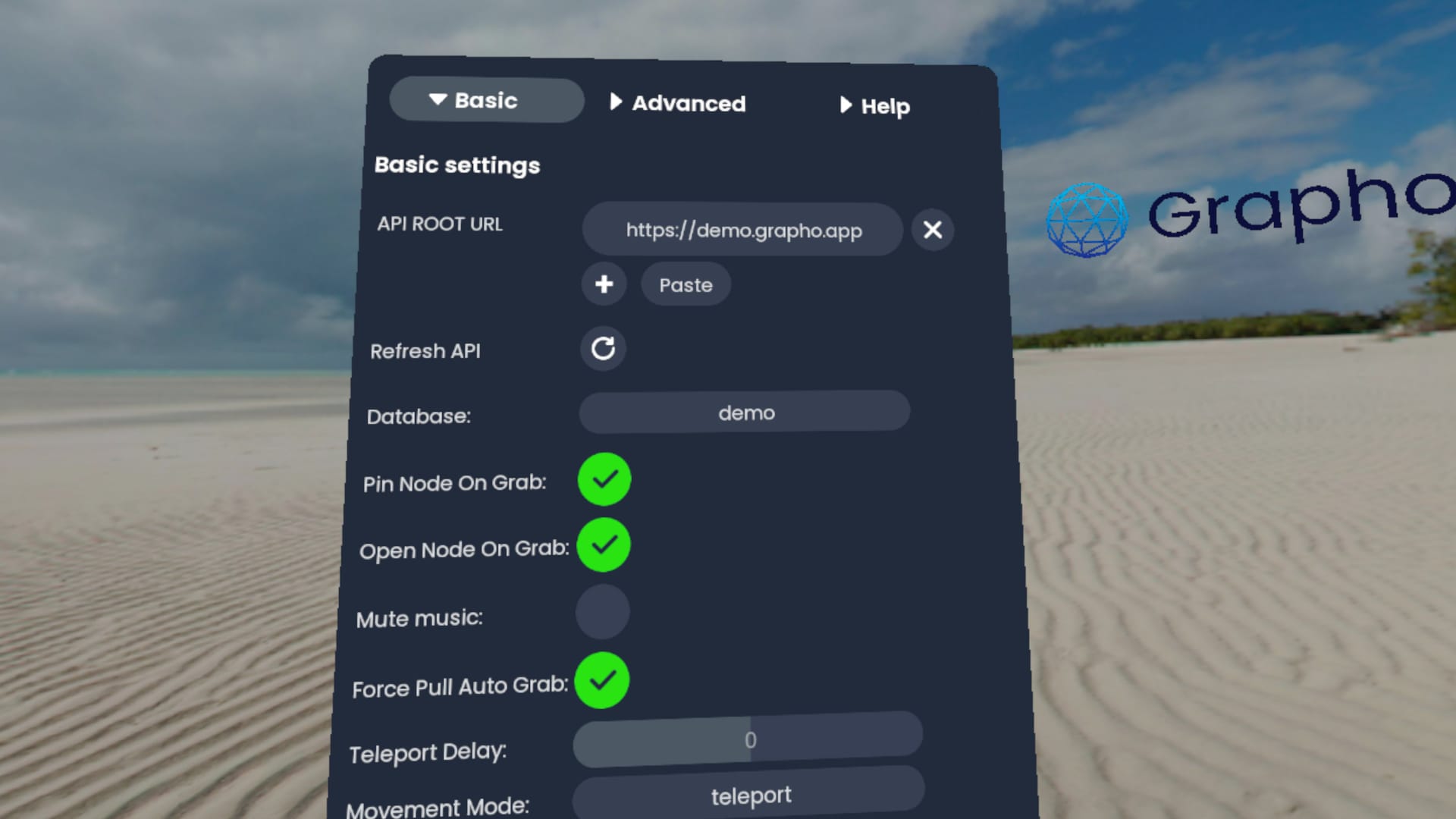
### Basic
settings
- **API URL** (list) - choose from available Grapho API servers or add
your own.
- **Refresh API** (button) - re-run query. Useful for network
troubleshooting
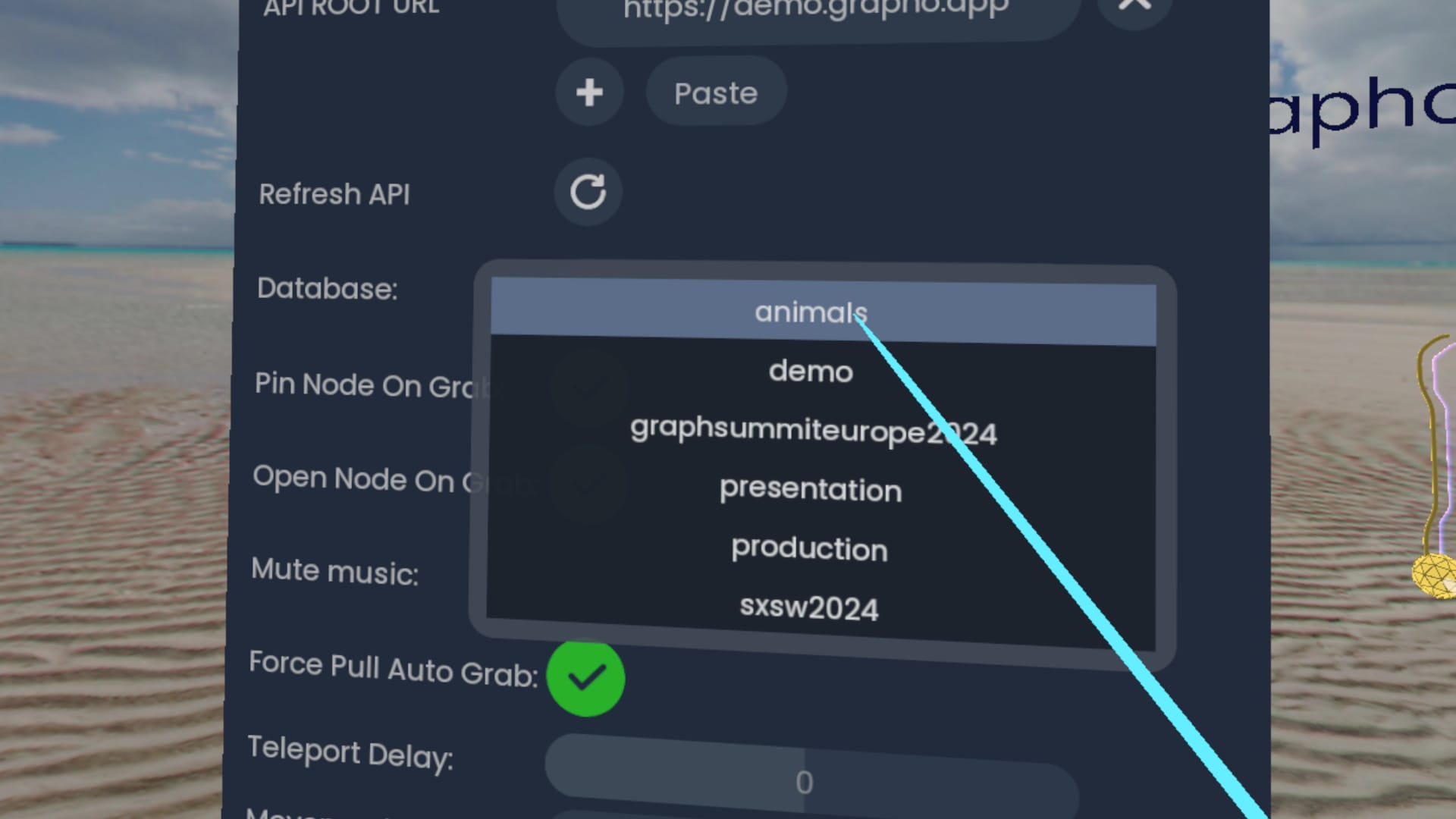
- **Database** (list) - choose from available graph databases (per
server)
settings
- **Pin Node On Grab** (toggle) - a pinned node is not moved when
pulling on a relationship
- **Open Node On Grab** (toggle) - show Datapad when grabbed, otherwise
use TRIGGER to open manually
- **Mute music** (toggle) - disable any music (none in Grapho XR Demo)
- **Teleport Delay** (float) - for VR newcomers, a delay can cut down
accidental teleporting by brushing the joystick
- **Movement Mode** (options) - teleport, sliding or None. None useful
for seated experience for VR newcomers
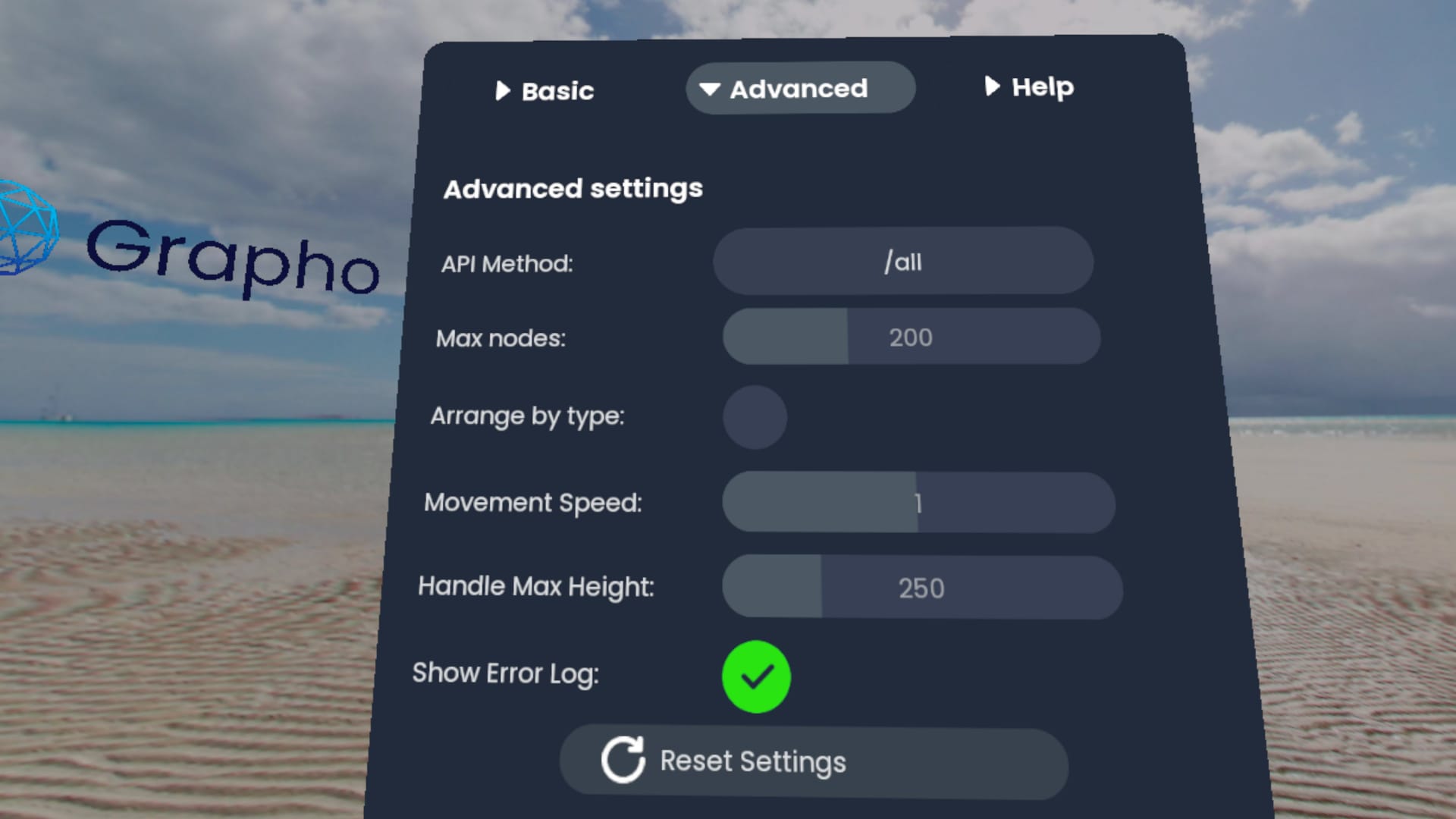
### Advanced
settings
- **API Method** (options) - all (downloads handles and curated NEXT
paths) - best for quick demos and access to large graphs, game
(downloads entire graph ) - best for custom applications
- **Max nodes** (int) - filter number of nodes for performance and/or
usability
- **Arrange by type** (toggle) - enable to cluster all nodes by their
given types (labels in Neo4j speak) EXPERIMENTAL
- **Camera (Movement) speed** - controls speed of Spectator camera PCVR
ONLY
- **Handle Max Height** (int) - handles float back to this height for
accessibility
- **Show Error Log** (toggle) - show panel of error messages
- **Reset Settings** (button) - reset all Settings to defaults
- **Clear Web Cach**e (button) - delete all JSON and media assets. Note
this will delete files bundled with the installation. Reinstall the
app to restore these.
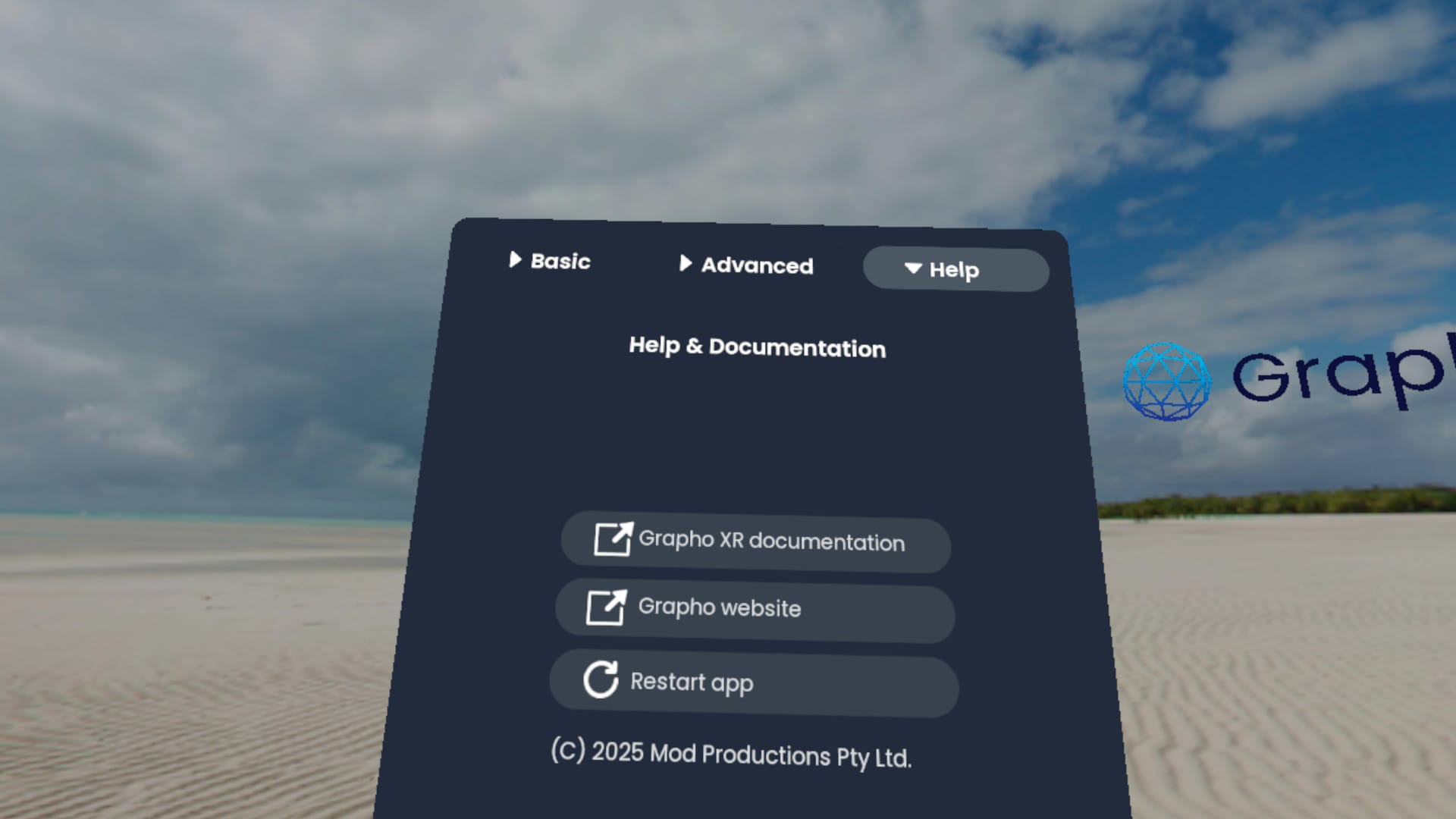
### Help
settings
- **Grapho XR documentation** (link) - to [online
docs](https://docs.grapho.app) - this site
- **Grapho website** (link) - to [product site](https://grapho.app)
- **Restart** (button) - restart application
- **Build information** - used for support & troubleshooting
## Spectator Mode
spectatormode
### Windows
PCVR builds of Grapho XR include a third person “Spectator” mode - a
virtual camera you can control from the desktop (separate view to what
VR user can see). This is a cheap and cheerful way of hosting data
exploration sessions with a group.
CONTROL + S - Toggle Spectator Camera
WASD keys to move camera
Settings | Advanced | Camera (Movement) Speed to adjust movement speed.
NOTE visibility of camera to the person in VR is not currently exposed
as a Setting.
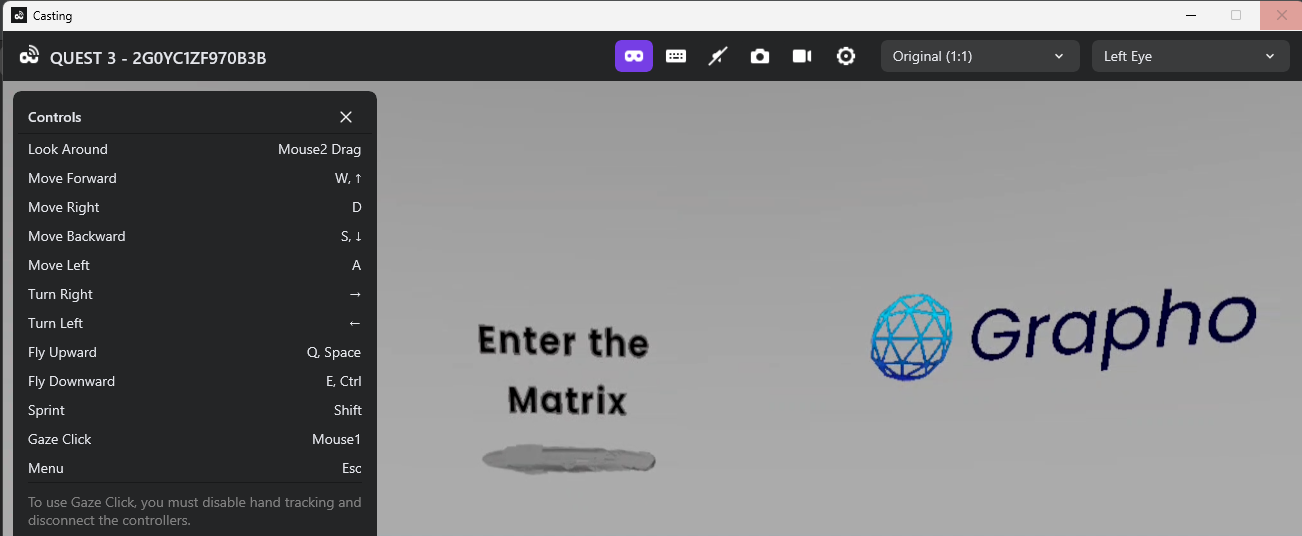
### Meta Quest
Spectator mode is not yet available for mobile VR.
However using [Meta Quest Developer
Hub](https://developer.oculus.com/meta-quest-developer-hub/) \> Casting
\> Start Forwarding Camera Input you can now remote operate the Quest
virtual camera.
WARNING - do not attempt to use this while someone is wearing the HMD as
this can make them very sick!
forward-input
# Grapho Machine
Grapho Machines (GMs) are re-distributable applications and online
services. They are how we build, deploy, distribute and operate services
in a standard way. There is no one-size fits-all approach that will work
for all use cases so GMs provide an abstraction layer for delivering
services across a variety of platforms as required.
GMs include
- functionality - instances of any bundled applications and services
- data - preset data, instance-generated data
GMs support a variety of container and virtual machine formats for use
on your local device, on-premises hosting or on cloud platforms.
We use packer and terragrunt to maintain [Infrastructure as
Code](https://en.wikipedia.org/wiki/Infrastructure_as_code) definitions
of all Grapho components to automated creation of Grapho Machine
instances and GM variants for multiple platforms as required.
e.g. a Grapho Machine might be created as \* AMI for use on AWS \* VHD
for use on a local Windows machine \* PVM for use on a local Mac machine
Supported:
- Virtual Machine Image Formats
- AMI
- VHD
- Containers
- Linux Containers (LXC)
- Docker
- Virtual Box
- VMWare
[Contact us](https://mod.studio/where/) to discuss how we can accomodate
any new infrastructure requirements not on this list.
The default Grapho Machine is currently a Linux Debian instance that
hosts LXC Containers based on the [Academy Software Foundation’s VFX
Reference Platform](https://vfxplatform.com/).
See the [Grapho Developer Guide](DeveloperGuide.html) for more
information on preparing data and systems for Grapho.
# Online Services
## API
grapho-server is a lightweight reference API server for the
[GraphoXR](#grapho-xr) spatial browser.
Source code and documentation is available on
[Github](https://github.com/modprods/grapho-server)
This provides a thin abstraction layer to help manage vendor lock-in and
provide data to Grapho applications in a consistent manner as part of a
manageable pipeline.
See the [Grapho Developer Guide](DeveloperGuide.html#grapho-server) for
information on how to setup and run your own Grapho services.
### demo.grapho.app
We provide a public demo grapho-server at with
some sample graphs.
[Grapho XR Demo](#grapho-xr-demo) connects to this server by default.
e.g. Run [Grapho XR Demo](#grapho-xr-demo)
- The default database “demo” displays a handle “Enter the Matrix” and
“Help” handle
- “Help” opens after a few seconds to reveal a controls diagram.
Licensees can build arbitrarily complex integrations with the Unreal
Engine Sequencer system.
- Opening “Enter The Matrix” handle reveals a node “The Matrix” from
Neo4j’s sample Movie Graph.
- Expanding this node reveals all connected nodes.
See also \*
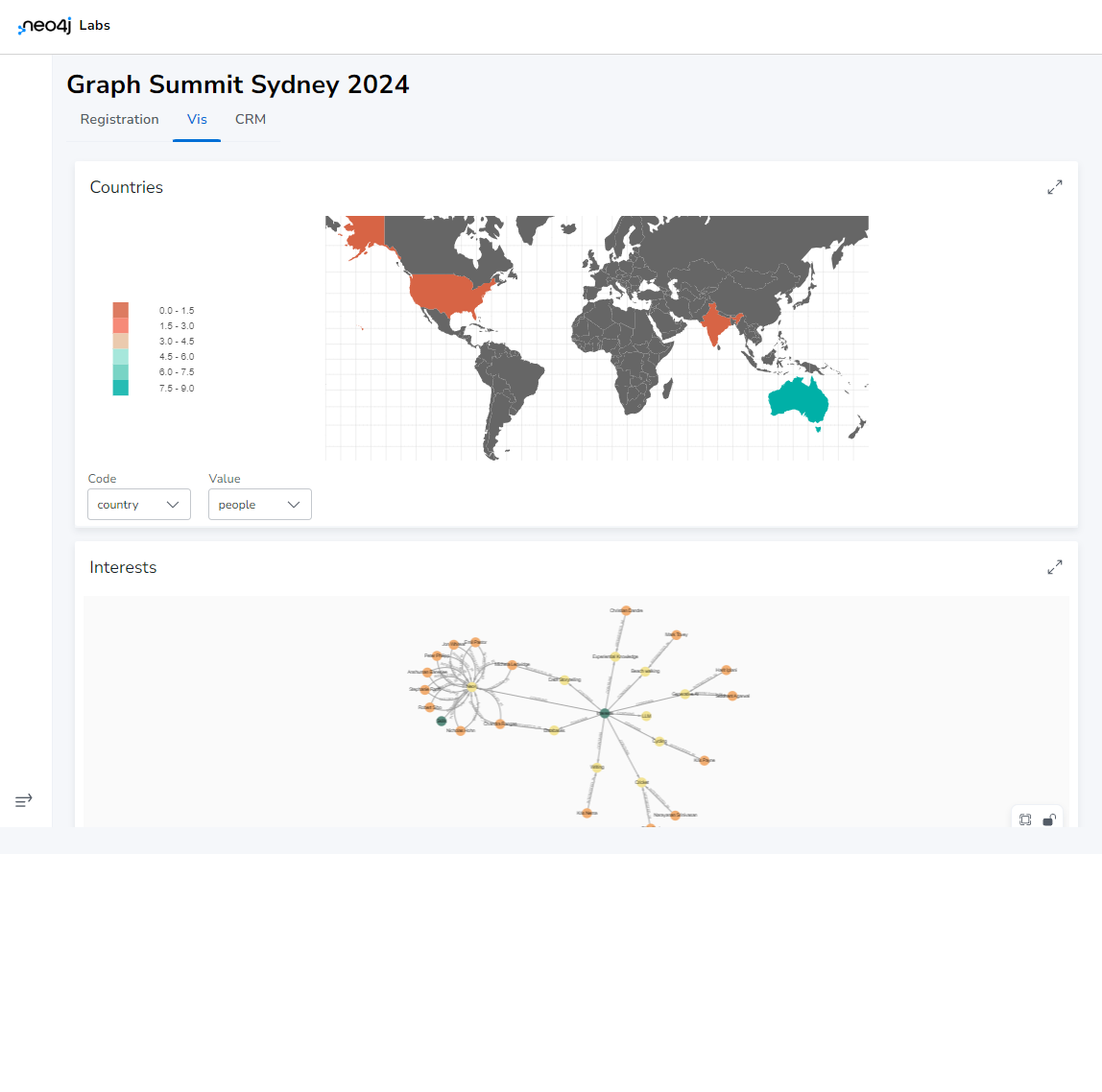
## Dashboard
Grapho provides useful screens for managing your data whether these are
off-the-shelf integrations or custom built for specific use cases from
popular frameworks.
e.g. [Neo4j Neodash Dashboard Builder](https://neo4j.com/labs/neodash/)
graphsummitsydney2024-neodash
See our list of [Integrations](#integrations) available below and
[contact us](https://mod.studio/where) for any new integration
requirements you might have.
## Integrations
- Neo4j
- Community Edition - v4.4, v5
- Enterprise Edition - v4.4, v5
- Plugins
- Bloom
- GDS
- APOC
- Neodash
- Streamlit
- Gradio
- Jupyter
- Django
- Wagtail
Formats
- JSON
- CSV
- VCF
Platforms
- Neo4j Aura
- Amazon AWS
- Google Cloud
- Microsoft Azure
- ZohoCRM
- Twitter
- Facebook
- Discord
Graphics Engines
- Unreal Engine
- Houdini
- Touch Designer
- Blender
# Mixed Reality
## LIV
Grapho XR PCVR supports the LIV Mixed Reality for real-time live action
video integration.
# Use Cases
Grapho has been deployed for a variety of use cases across major
projects in different sectors.
- Organisational knowledge & asset management
- Topological machine learning
- Collection management
- Data activation
- Training & simulation
- Production knowledge management
- Narrative design & worldbuilding
- Public speaking
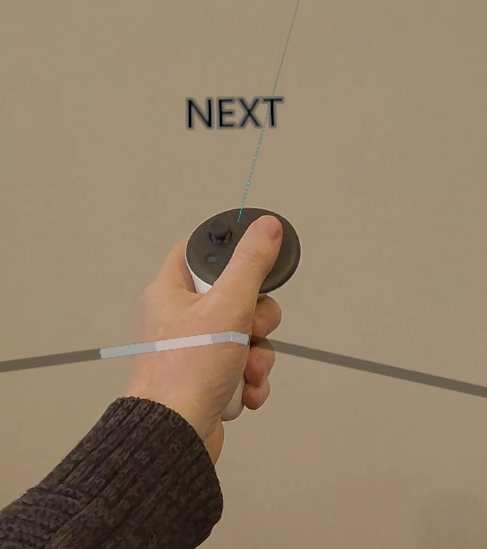
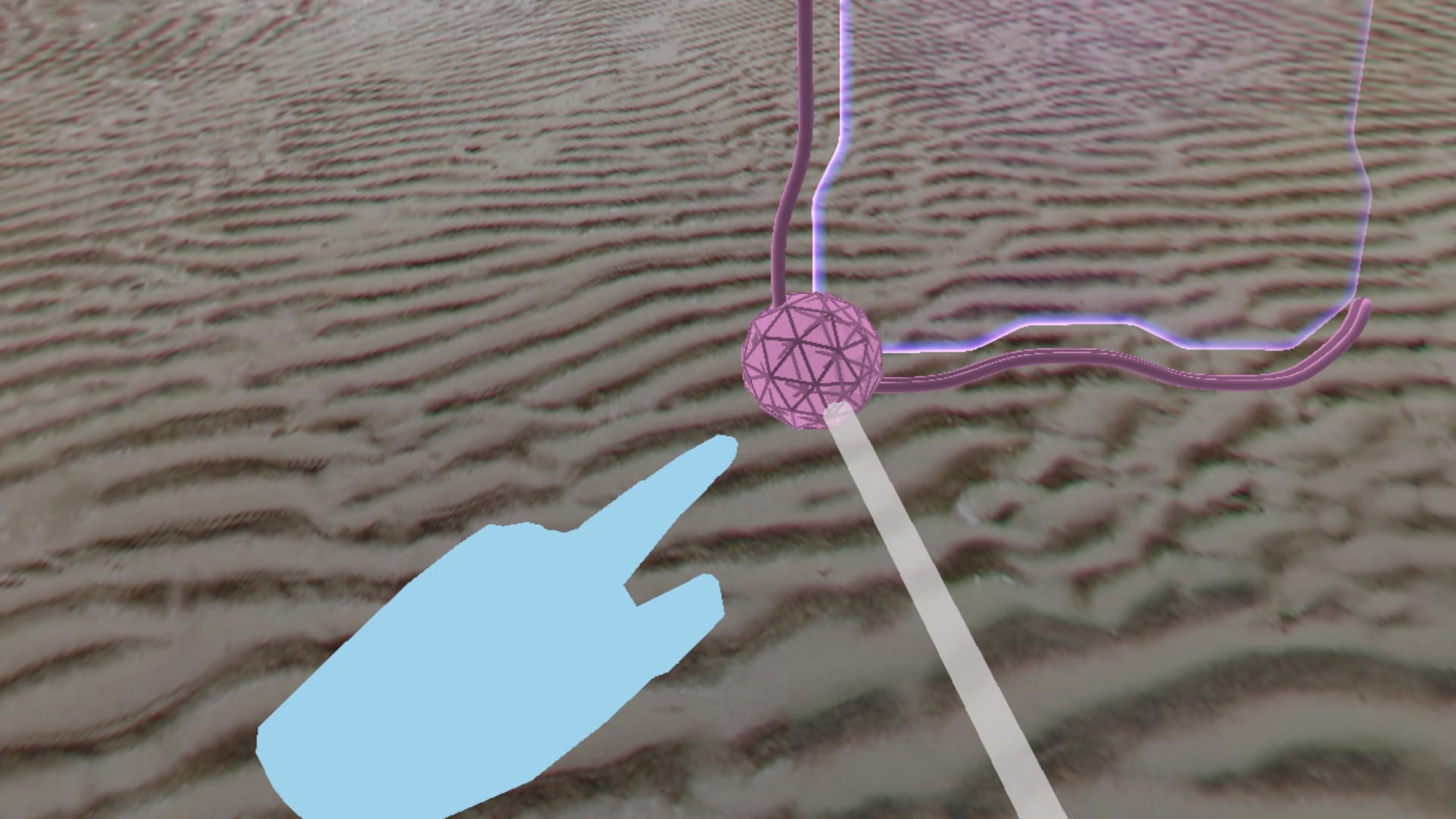 *Screenshot: press TRIGGER to point
your virtual hand*
## Sectors
- Enterprise knowledge management
- Cultural heritage
- Media & entertainment
- Video games
- Civil engineering
## Case Studies
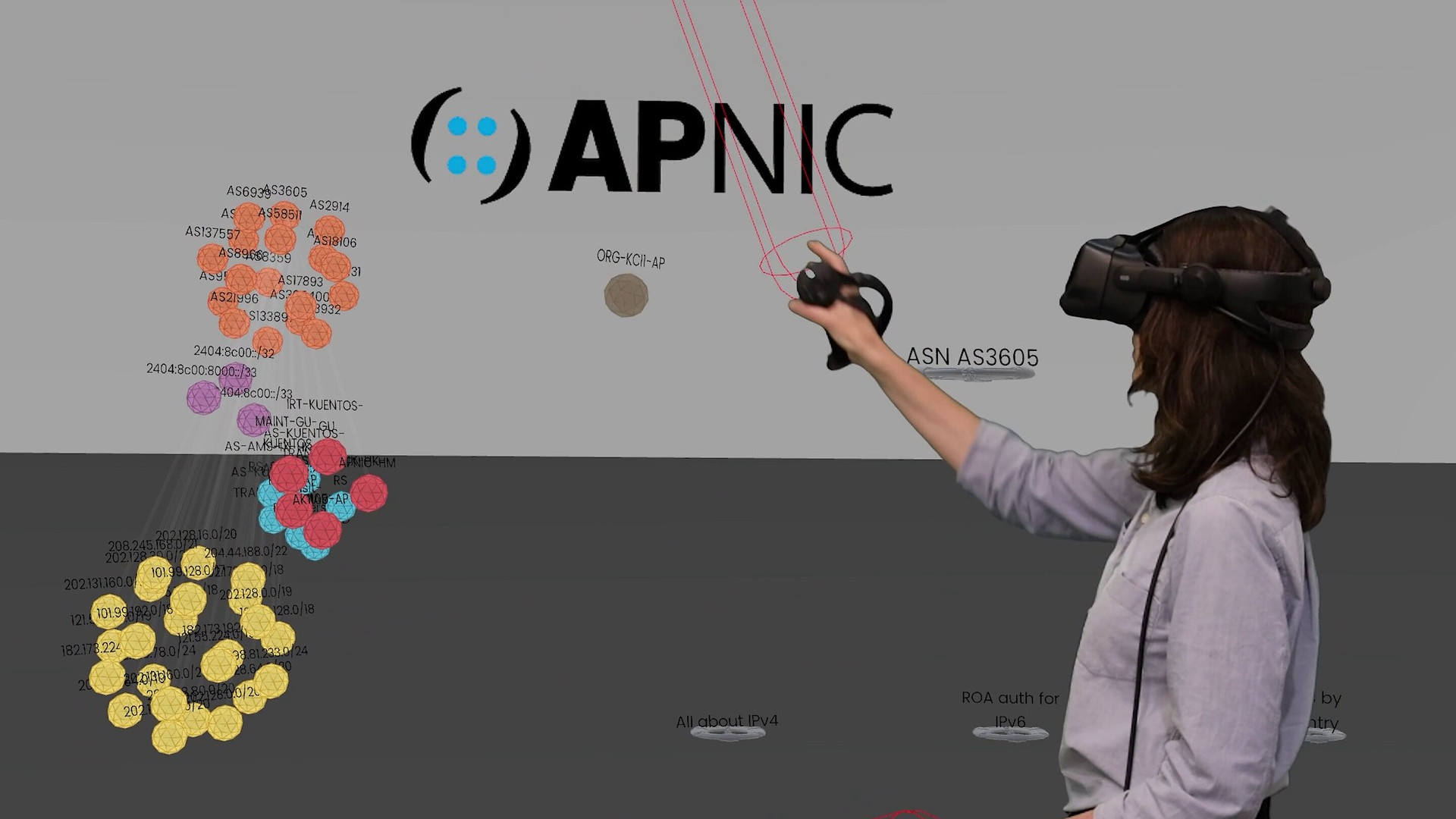
### Asia-Pacific Network Information Centre (APNIC)
APNIC
The APNIC Visualisation Tool was built with Grapho XR to provide
internal staff with a resource for network graph exploration and
analysis on desktop and in VR.
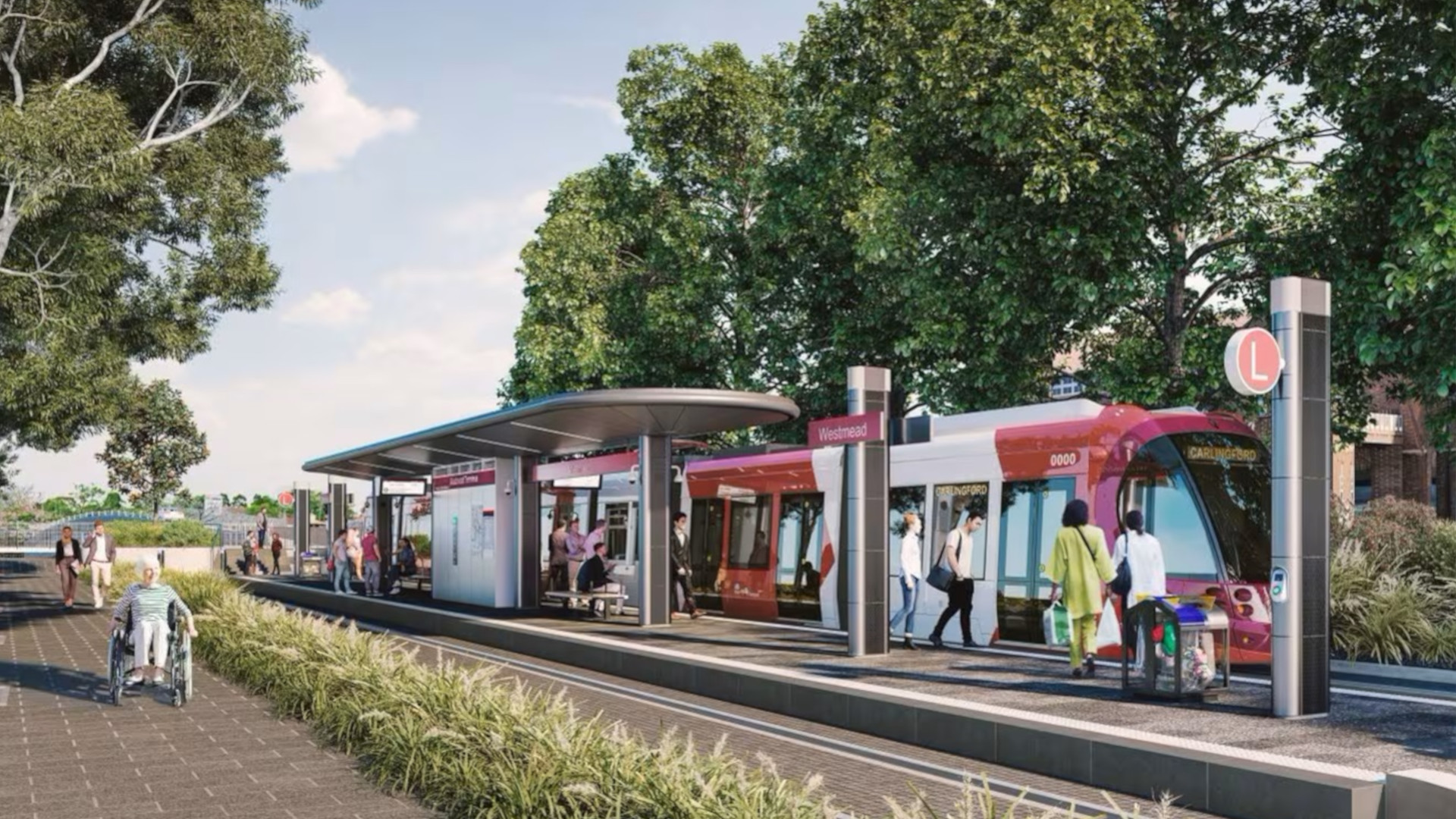
### Parramatta Light Rail
Parramatta-Light-Rail
Grapho tools were used to model and illustrate the complex interplay
between people, processes and technology for the Software Management
Plan.
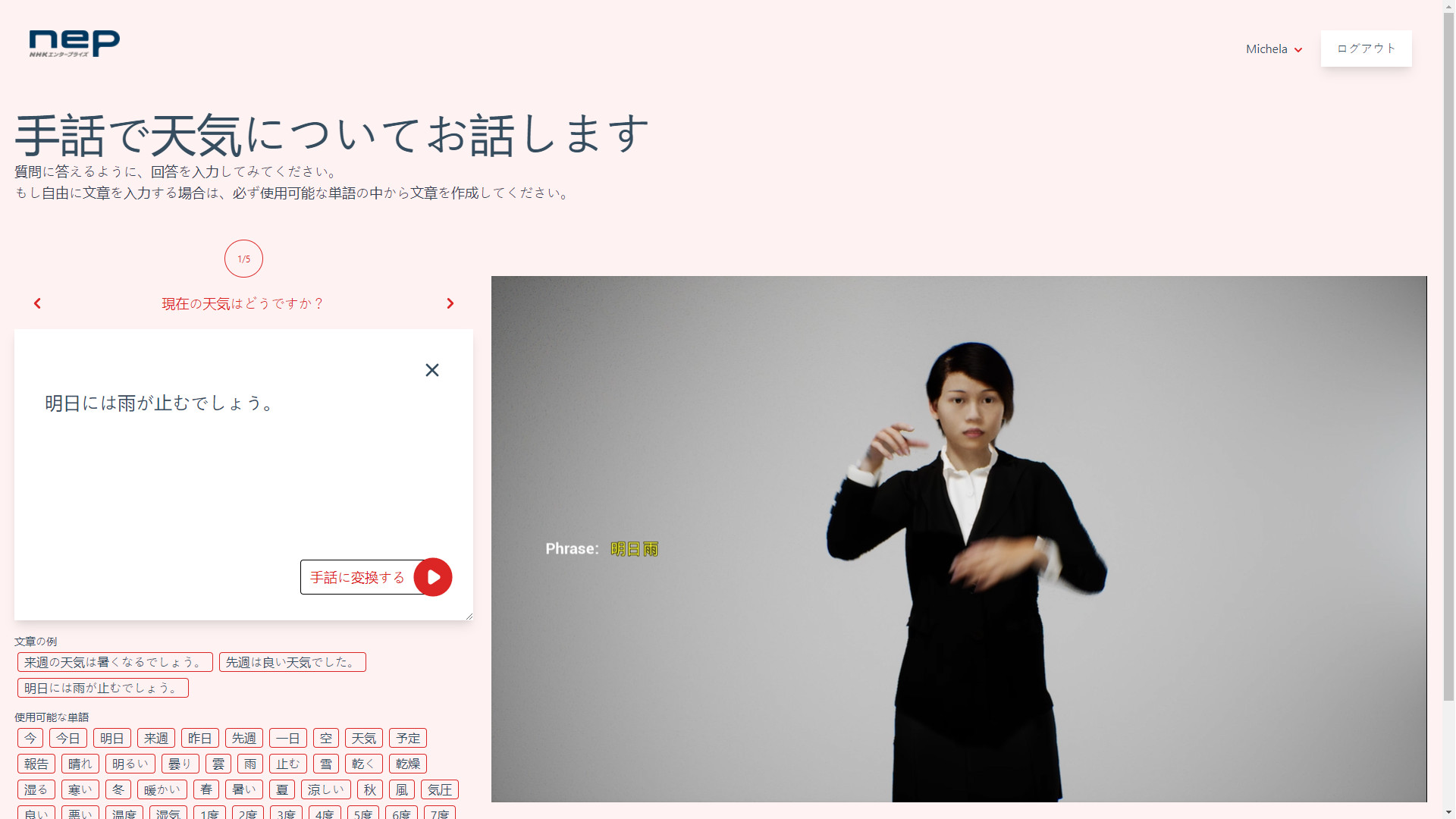
### Japan Broadcasting Corporation (NHK)
NHK
Grapho was used to design and prototype a digital human agent that
communicated in Japanese sign language on broadcast TV.
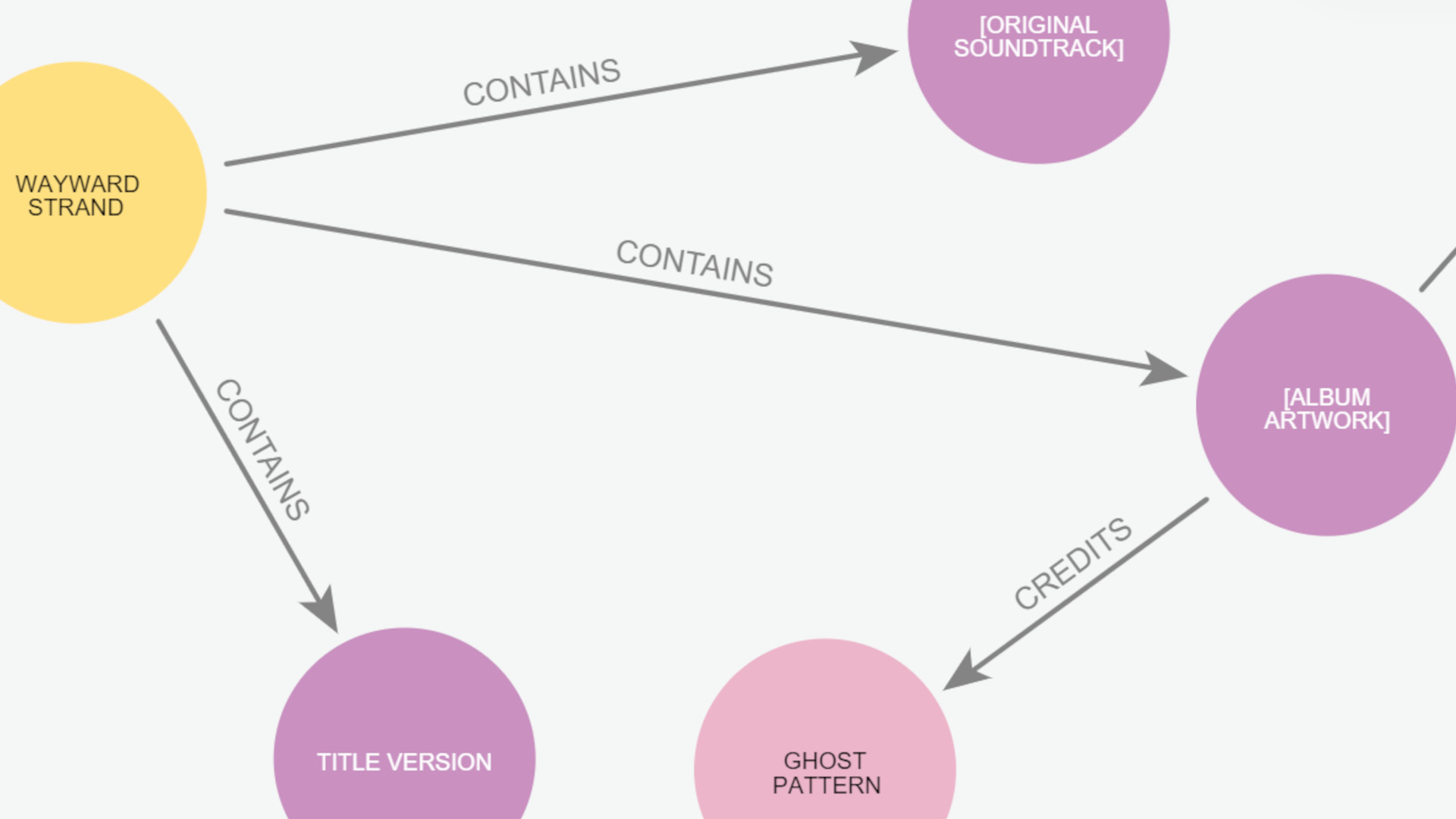
### National Film & Sound Archive (NFSA)
NFSA
Grapho tools are being used to update the service framework for
Australia’s national multimedia collection, including a knowledge graph
and a topological machine learning pipeline.
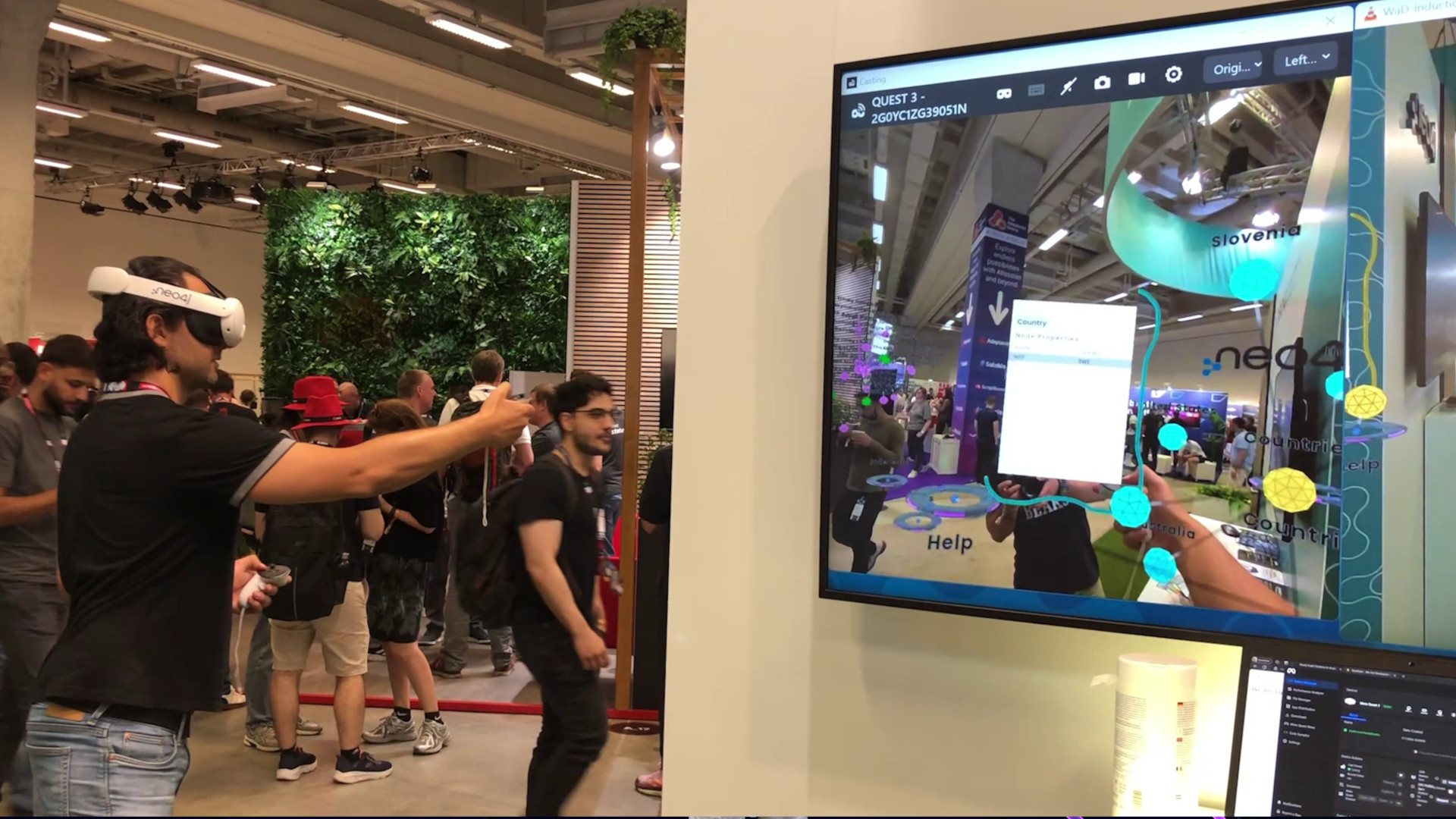
### Neo4j
Neo4j
Neo4j field engineers and marketing managers use Grapho XR to help
visitors to their trade show stand get a handle (literally!) on graph
databases.
### A Clever Label
ACL
Grapho XR’s first iteration was as the core mechanic behind Mod’s VR
investigative documentary, [A Clever Label](https://acleverlabel.com),
available on Steam.
### Mod
Mod
Property graphs form a core component of Mod’s studio management and
production pipeline - tracking physical and digital IP as well as
managing storyworlds and productions.
# Troubleshooting
We’re here to help.
For general issues with Grapho or this documentation, use
or contact your
Grapho account manager.
# Support
Email - support (AT) grapho (DOT) app
Discord - post in channel \#grapho on [Mod’s Discord
server](https://discord.gg/PPCaQD2)